Log a workout
Start a planned session or an empty workout, enter what you actually did, then finish and review it. A workout runs independently of its program: changing an exercise during one session does not change future program days unless you choose to update the program when you finish.
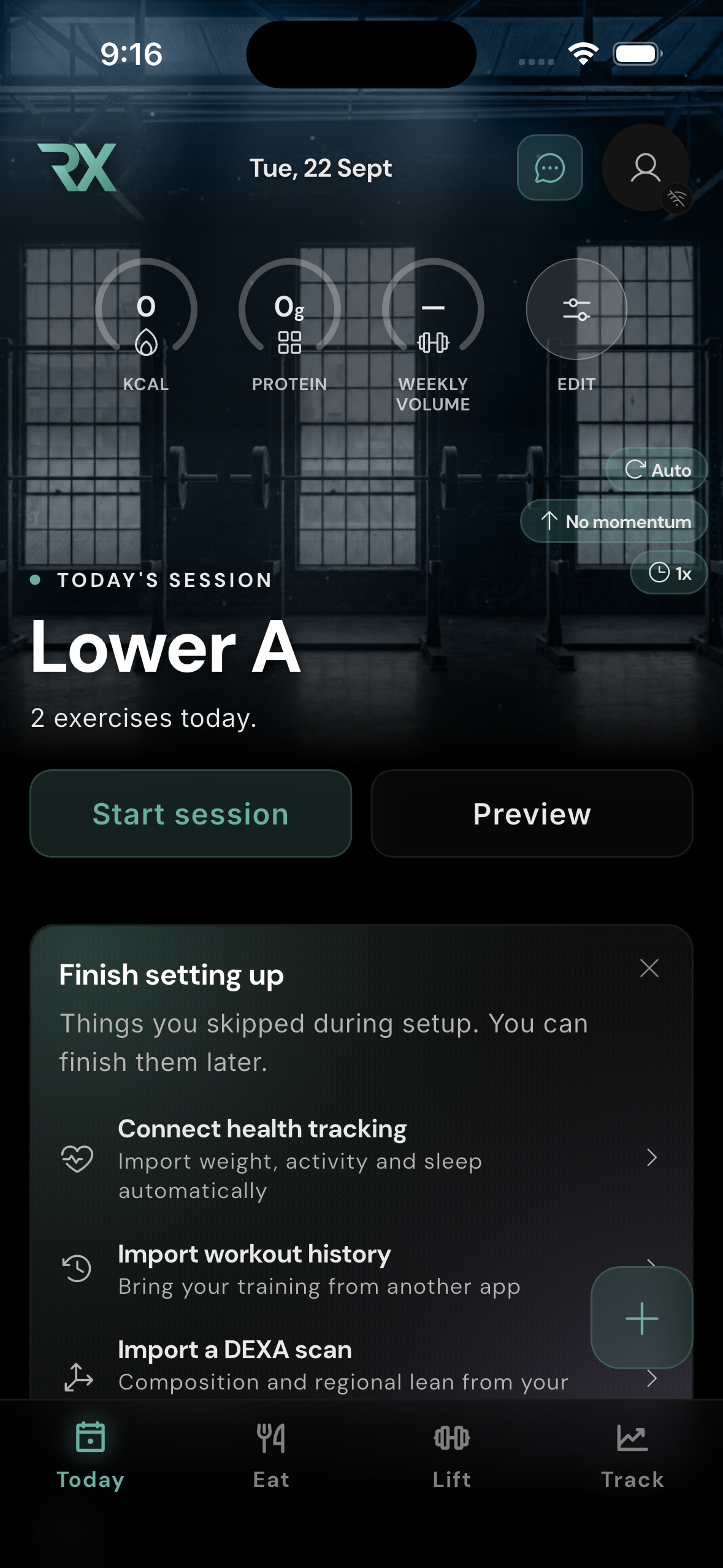
Start from Today
If a workout is scheduled, open Today and tap Start session on the workout card. That opens the exercises prescribed for the day. If you already started a session, return to it instead of starting another.
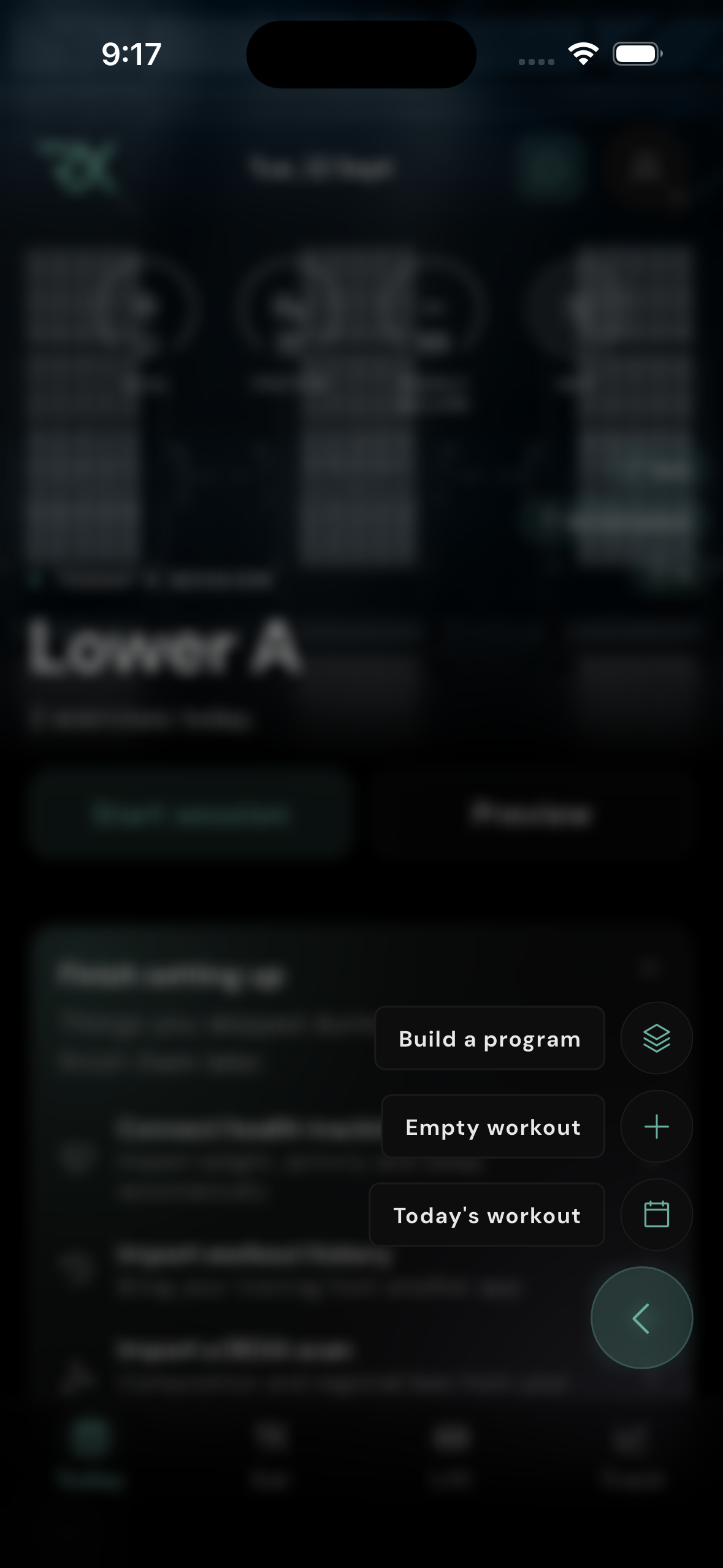
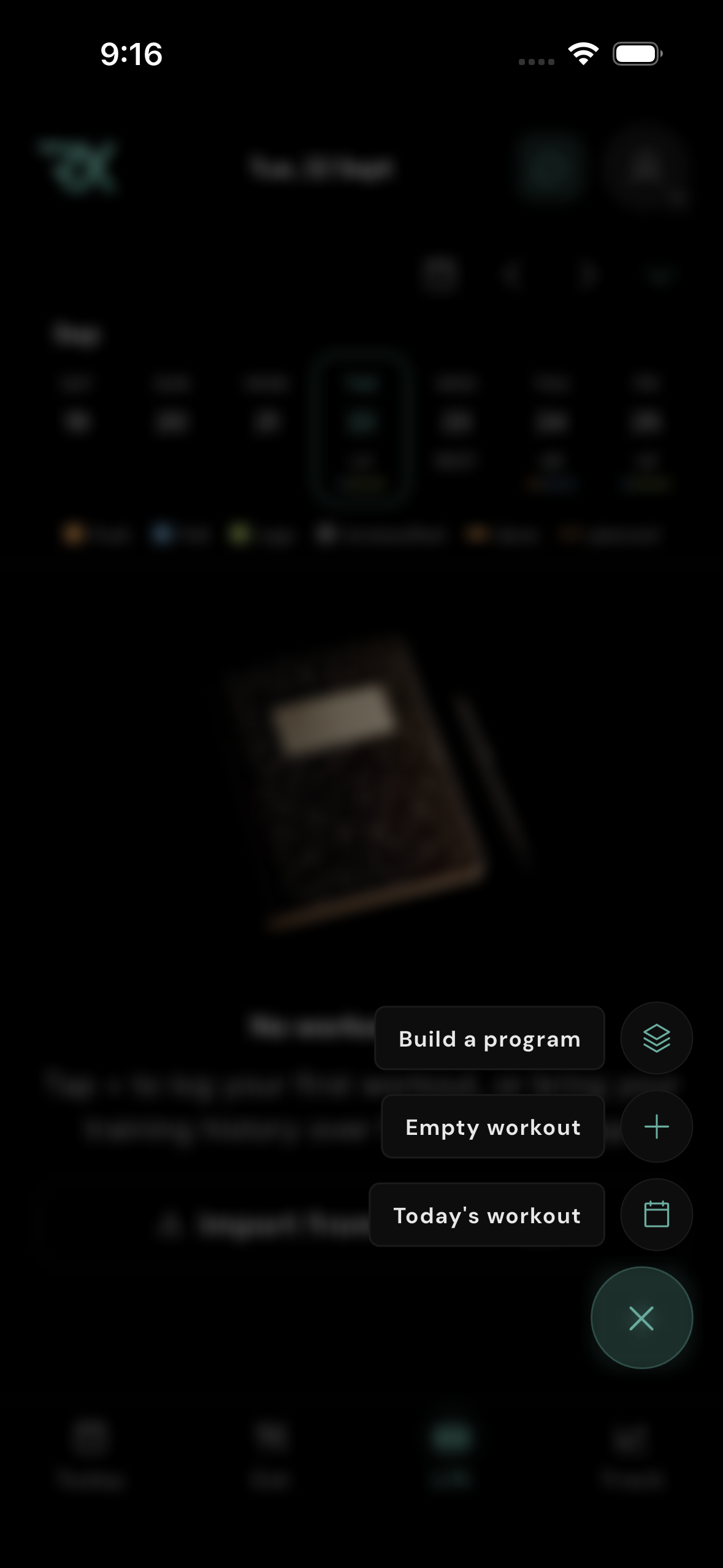
The + button on Today opens Track a workout. Choose Today’s workout to use the scheduled plan (when a workout day with exercises is available), Empty workout to build a one-off session, or Repeat previous to reuse a completed workout (once you have history). Build a program opens the program builder; it does not start a workout. Learn how to create a program.
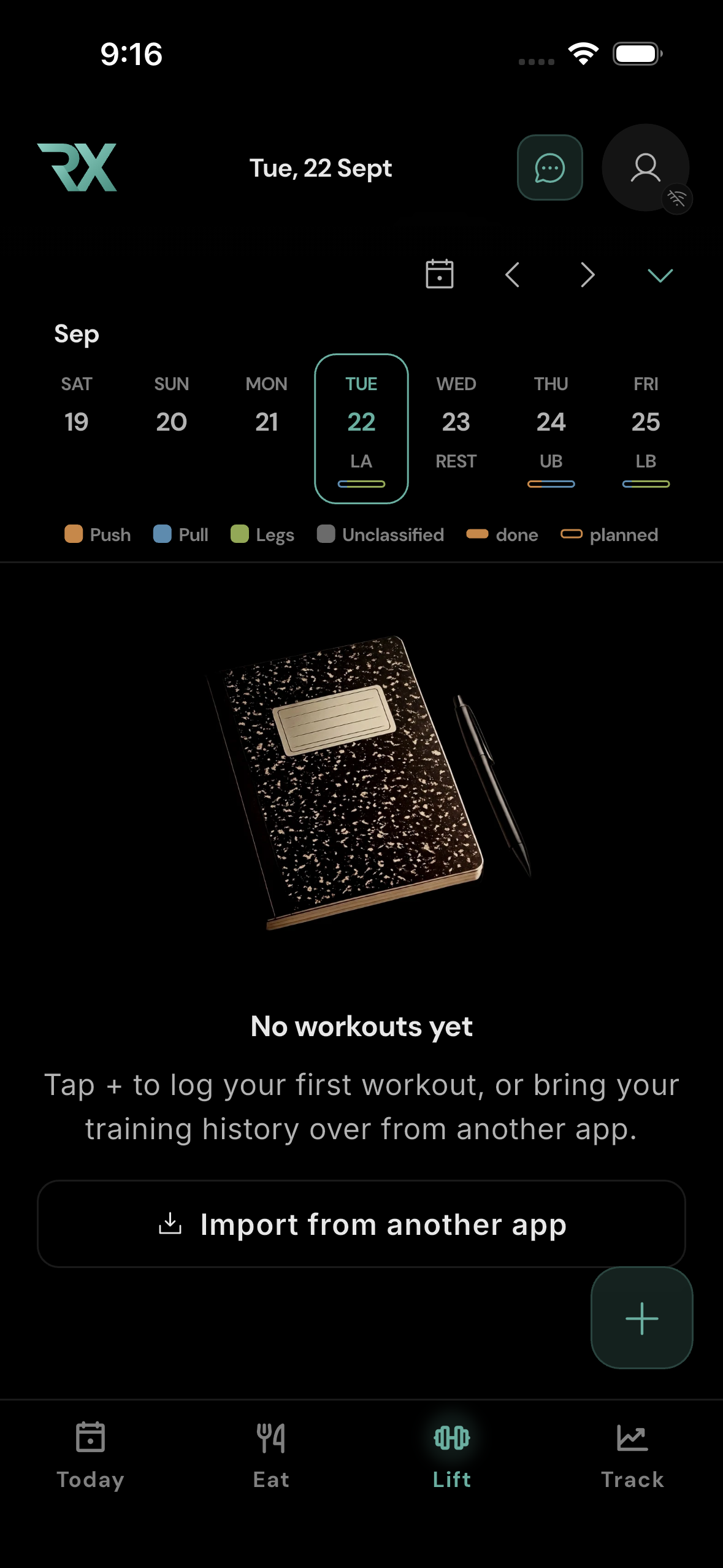
Start from Lift and its calendar
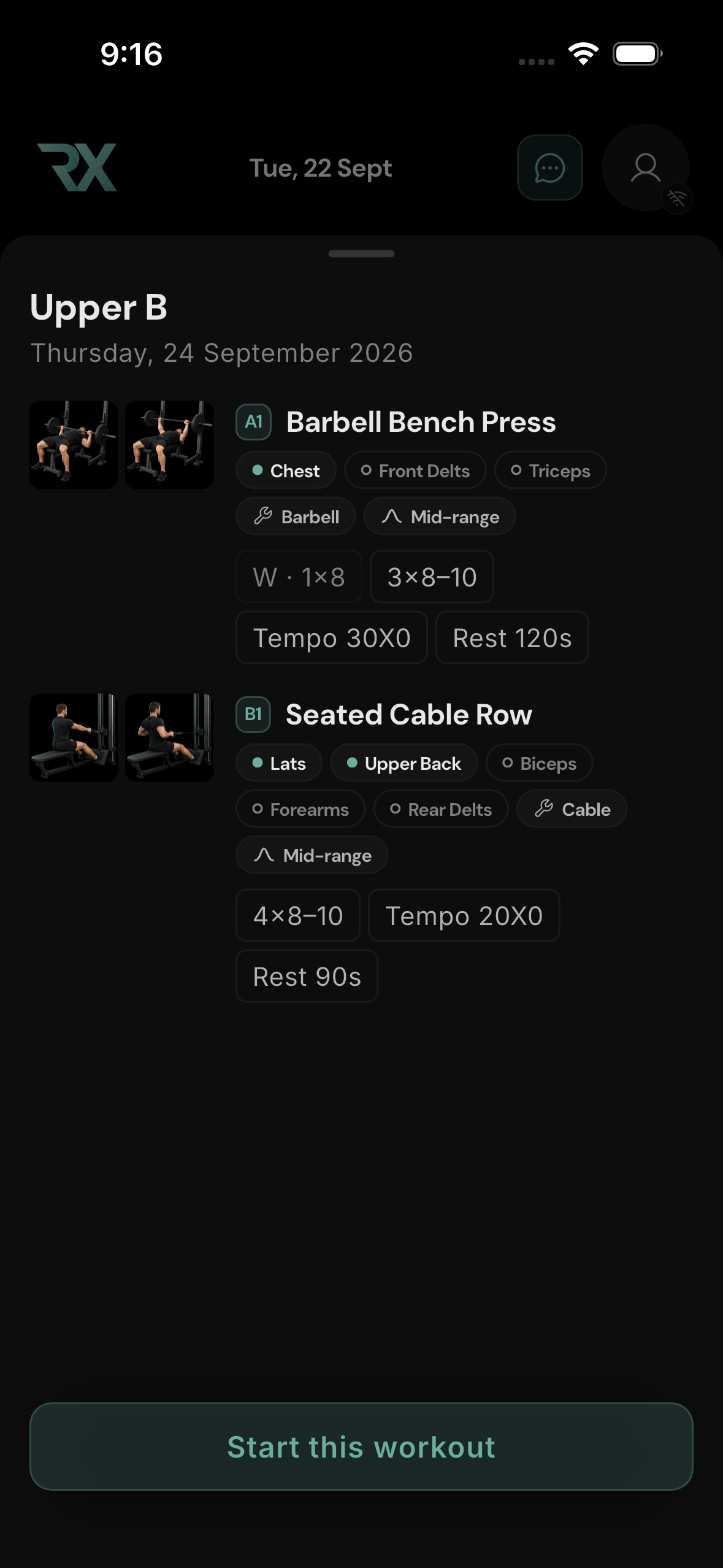
On Lift, tap a workout day in the calendar and then Start this workout. This is useful when you want to train a scheduled day other than the one shown on Today. A workout already in progress offers Resume workout; a completed day can offer Repeat this workout. Rest days and empty calendar days do not have a planned workout to start.
The + button on Lift offers the same workout choices as Today's Track a workout menu: Today’s workout when available, Empty workout, and Repeat previous when you have history. If you choose Empty workout, tap Add exercise, select exercises with their + buttons, and tap Done. The session timer starts as soon as the empty workout opens. It can be renamed from the workout header.
Read the workout screen
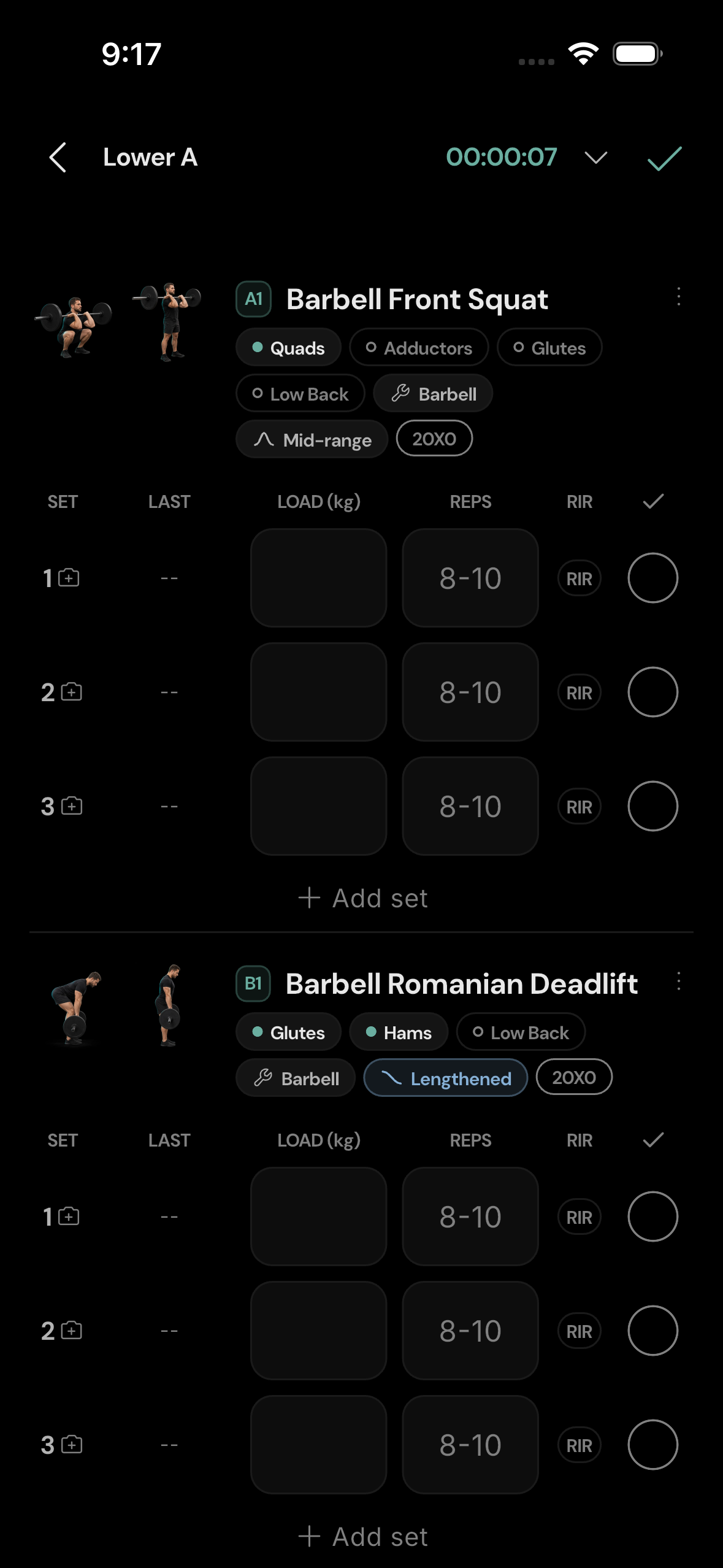
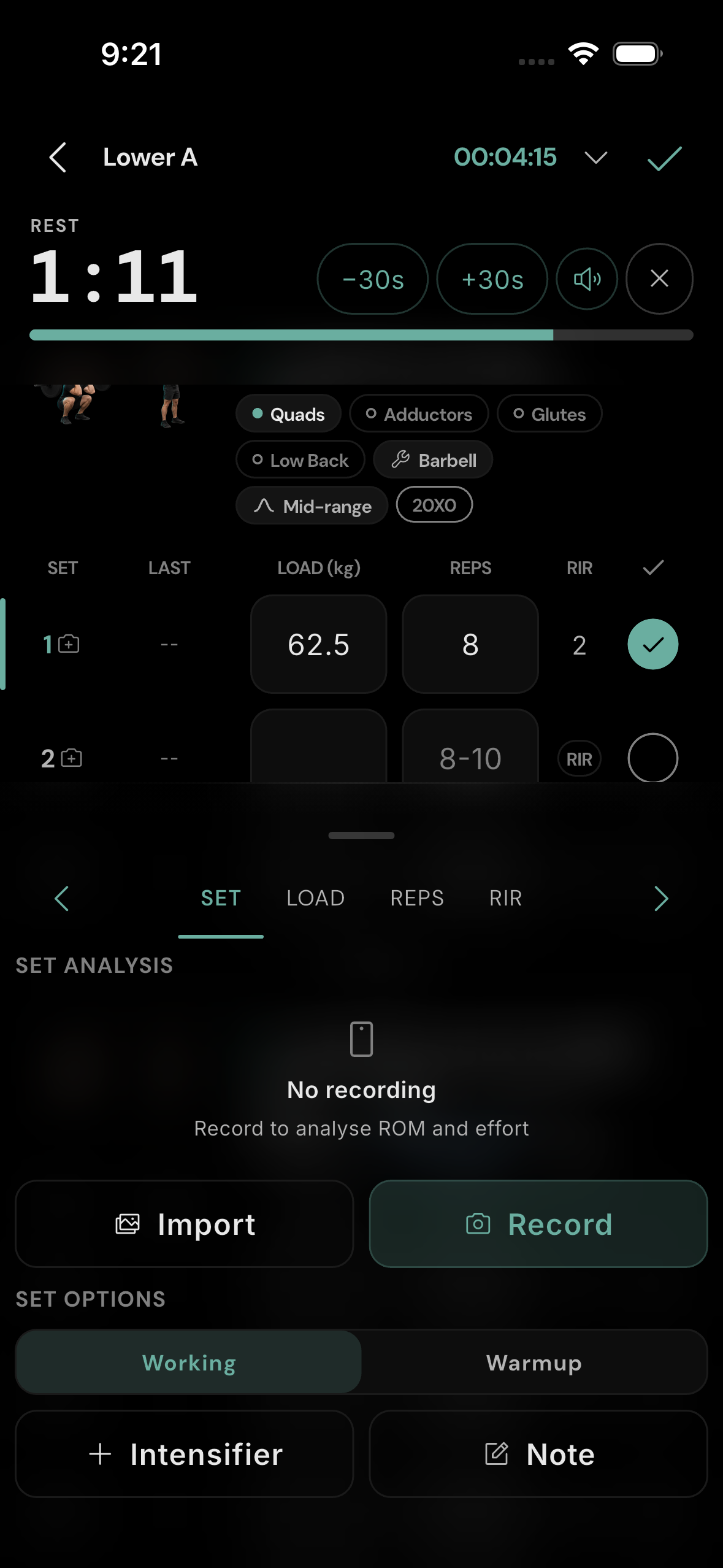
Each exercise has a row for every planned or added set. LAST shows your previous result; tap it to copy those values into the current row. LOAD is the weight or added bodyweight load, REPS is repetitions, and RIR means “reps in reserve”: how many more good reps you estimate you could have done. A target such as 8–10 is a guide; replace it with the reps you actually completed. Warm-up sets use a different set type and do not ask for RIR.
The circle at the end of a row indicates whether the set is logged. The elapsed time is in the header. Use the down chevron to expand or collapse its workout information. See how the load calculator and plates work.
Log a set
- Tap LOAD and enter the load. You can type an arithmetic expression or switch to the plate calculator. The value updates in the row as you enter it.
- Tap REPS and enter the number you performed. The pad's forward chevron moves through the fields.
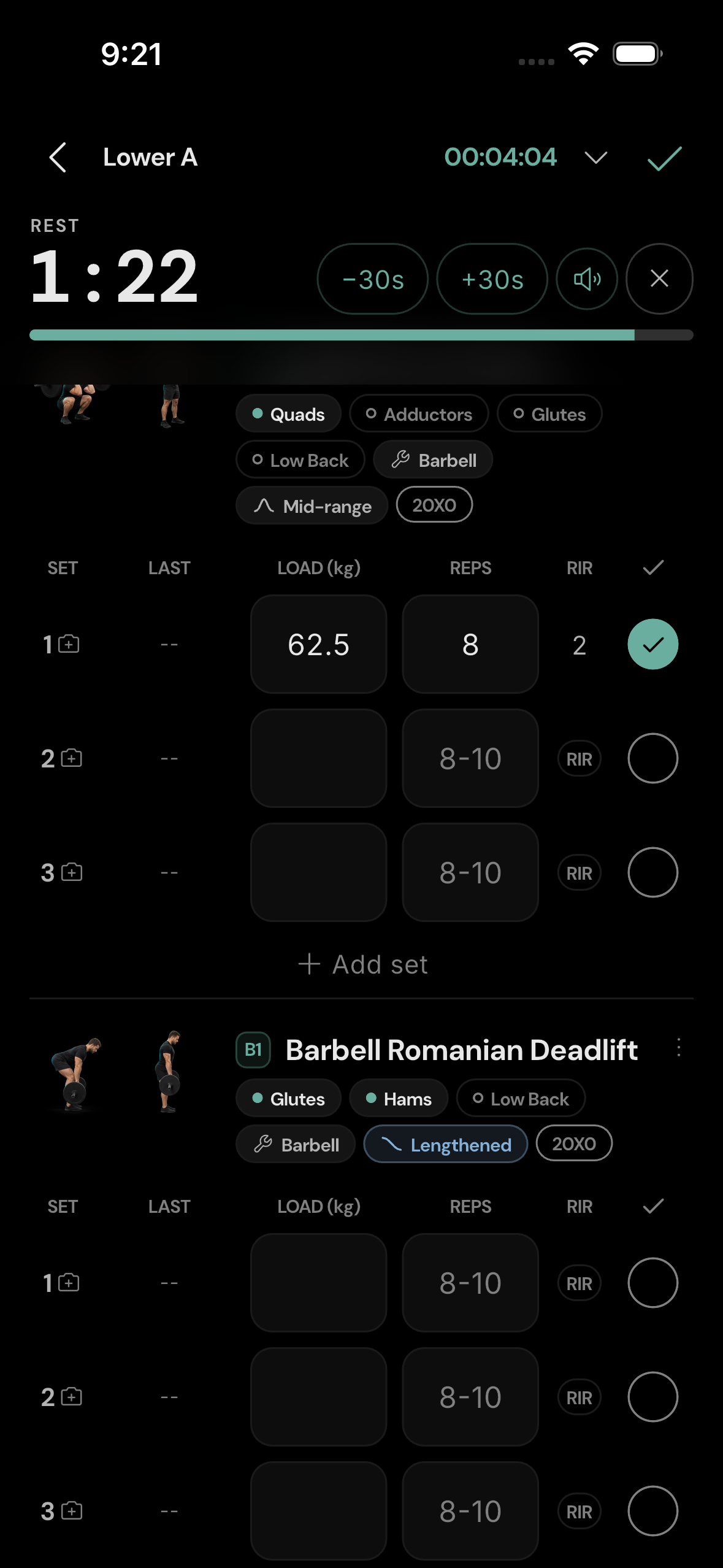
- For a working set, tap RIR and choose 0, 1, 2, 3, 4, or 5+. Choosing RIR completes the set when the required fields are present. For example, 62.5 kg × 8 at 2 RIR means you completed eight reps and believe about two more were possible.
You can also tap the row's completion circle. If a required value is missing, the app highlights that field so you can fill it. Warm-ups need the exercise's required load and reps or time, but no RIR. Some exercises track time instead of reps or use a different set layout.
Rest, add sets, and change set options
Completing a set can start the prescribed rest countdown. Use −30s or +30s to adjust it, the speaker control to change its sound, or × to dismiss it. The rest clock may run past zero if you take longer; it does not finish the workout for you.
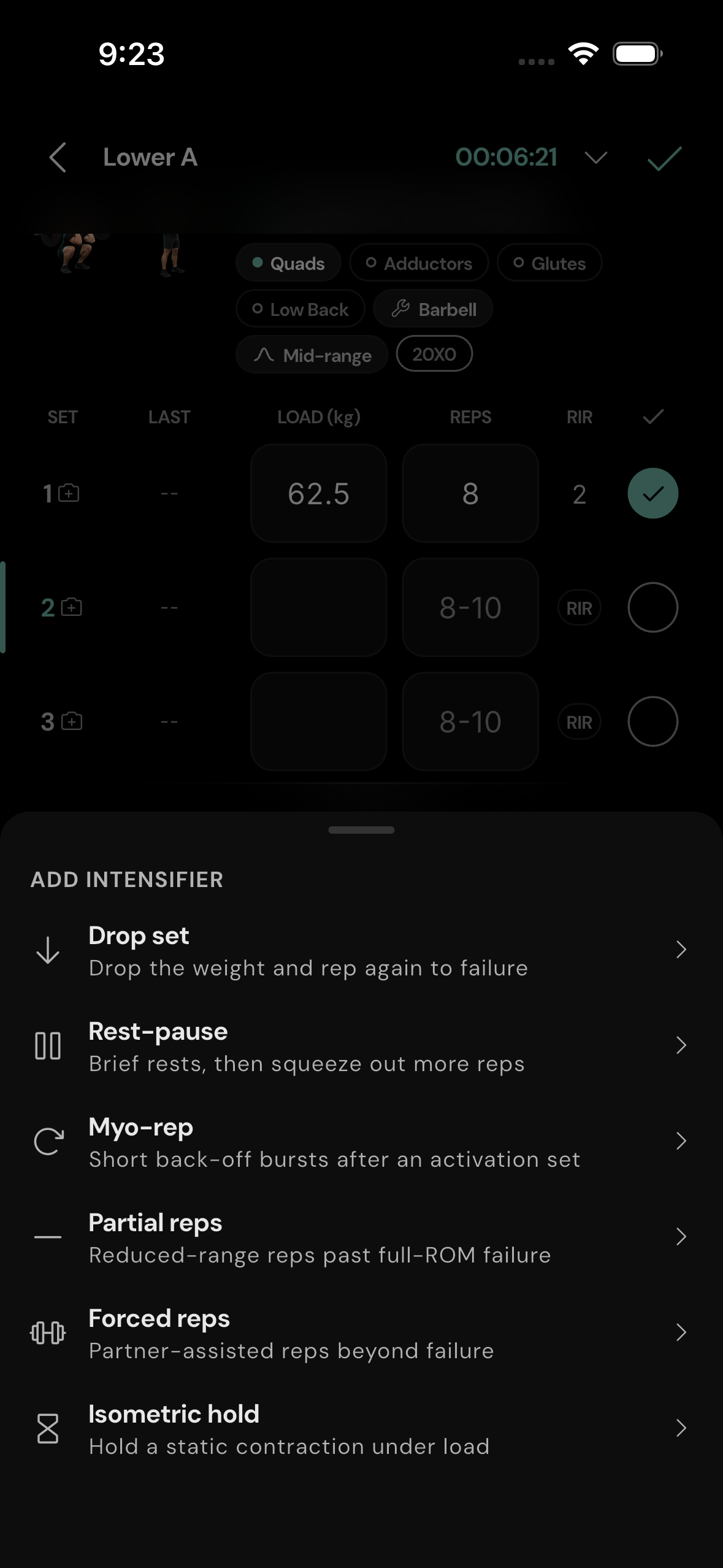
Tap + Add set below an exercise for another set. Press and hold it to copy the previous set's structure. Tap a set number to open its SET panel. There you can switch Working / Warmup, add a Note, or choose an Intensifier such as a drop set, rest-pause, myo-rep, partial reps, forced reps, or isometric hold. These add a more detailed sub-set; enter the values that match what you did. Swipe a set row away to remove it; an Undo toast appears briefly.
The SET panel also has Record and Import for video analysis. Record and analyse a set.
Change exercises while training
Tap + Add exercise at the bottom of the workout to include another movement. For an existing exercise, open its three-dot menu to swap, move, remove, link it into a superset, switch units, or inspect history. These actions affect the live workout. Manage exercises and exercise history.
Leave, resume, or finish
The back arrow offers Minimise, Discard workout, and Keep logging. Minimise keeps the live session so you can resume it later. Discard removes the session; choose it only if you do not want to keep the work.
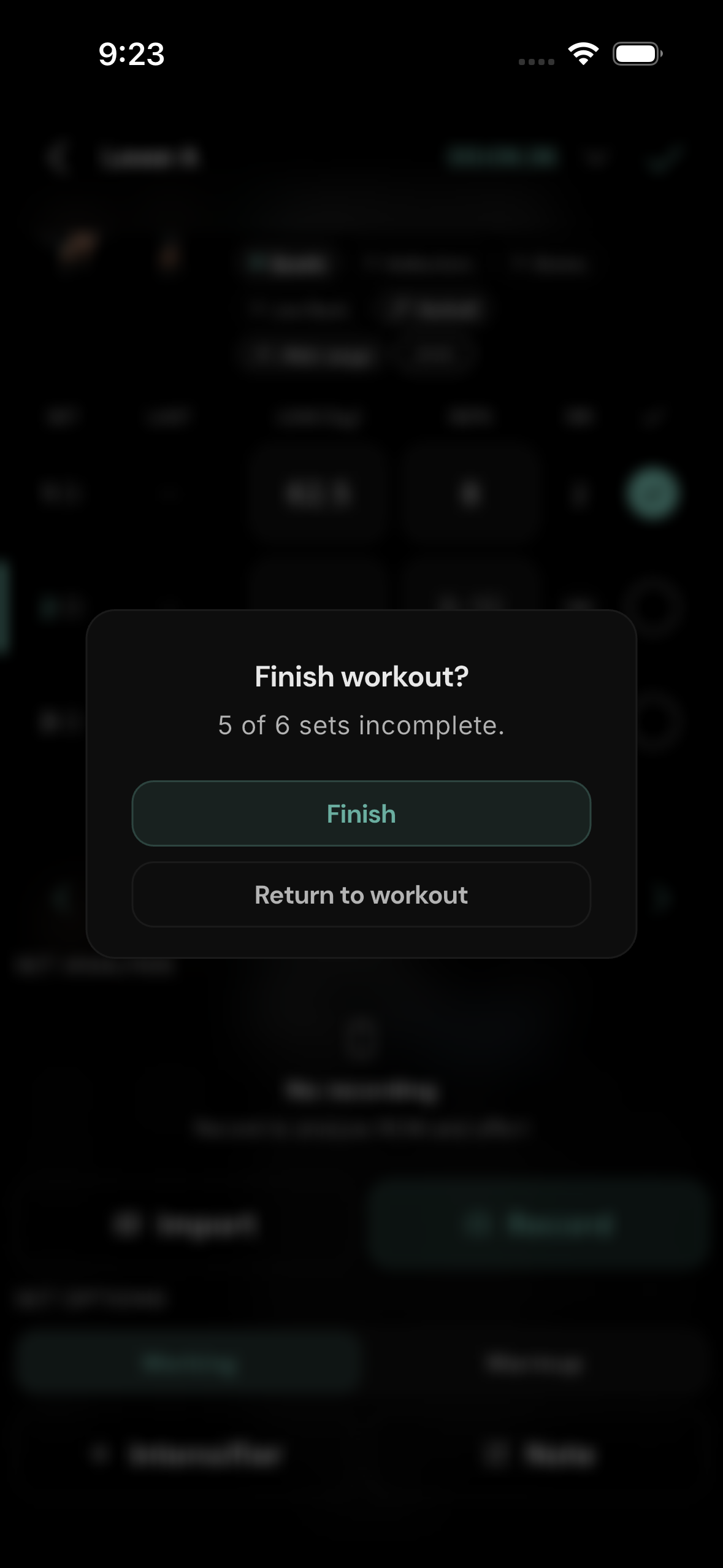
Tap the checkmark in the upper right to Finish workout. The confirmation says how many sets are incomplete. Return to workout if you want to fill them; Finish saves the completed sets and leaves unfinished ones out of the logged results. If an unfinished set has a recording, the app separately asks whether to keep that clip for later logging.
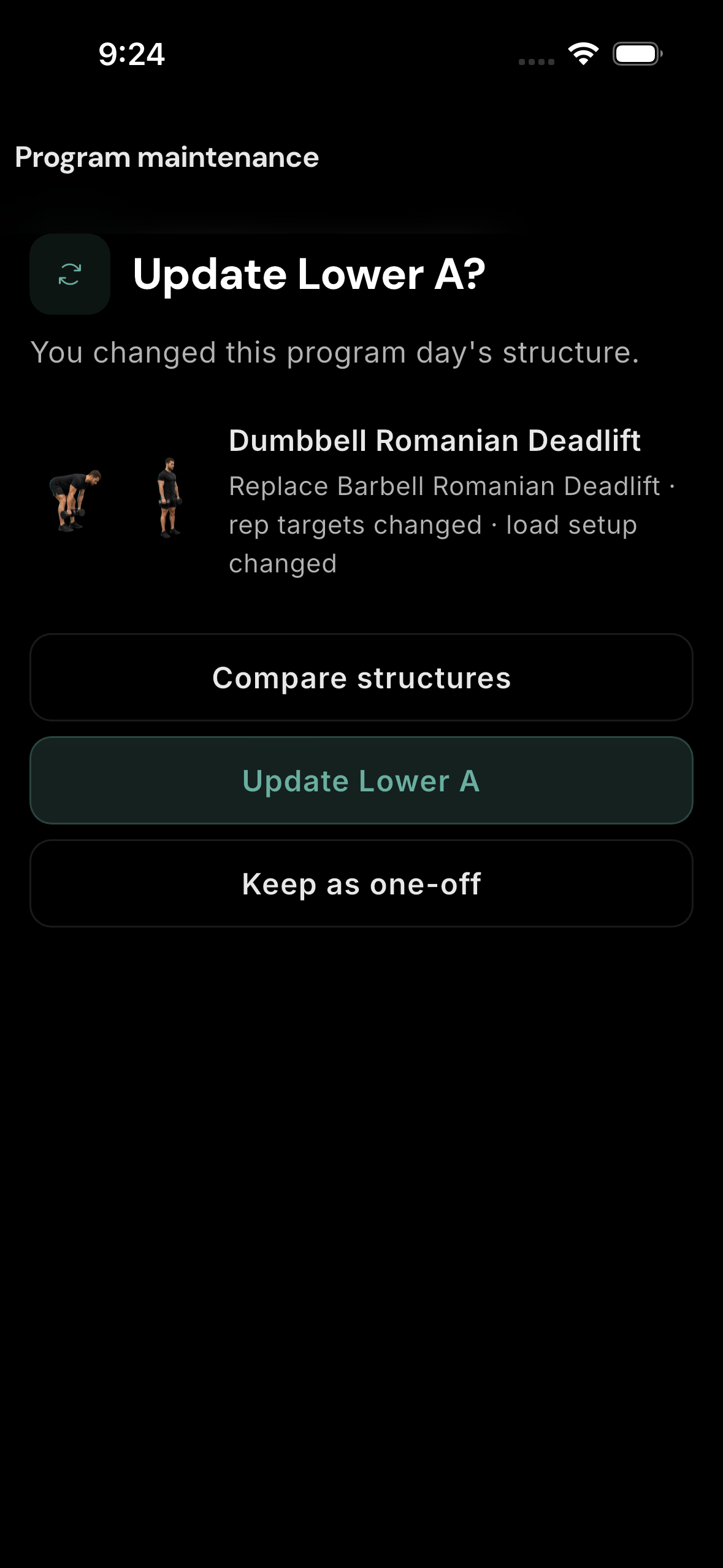
If you changed a programmed day's structure, the app may offer Update [day] or Keep as one-off. Updating the day changes its future program template; one-off keeps the change only in this workout. Compare structures lets you inspect the difference before deciding.
Review the result
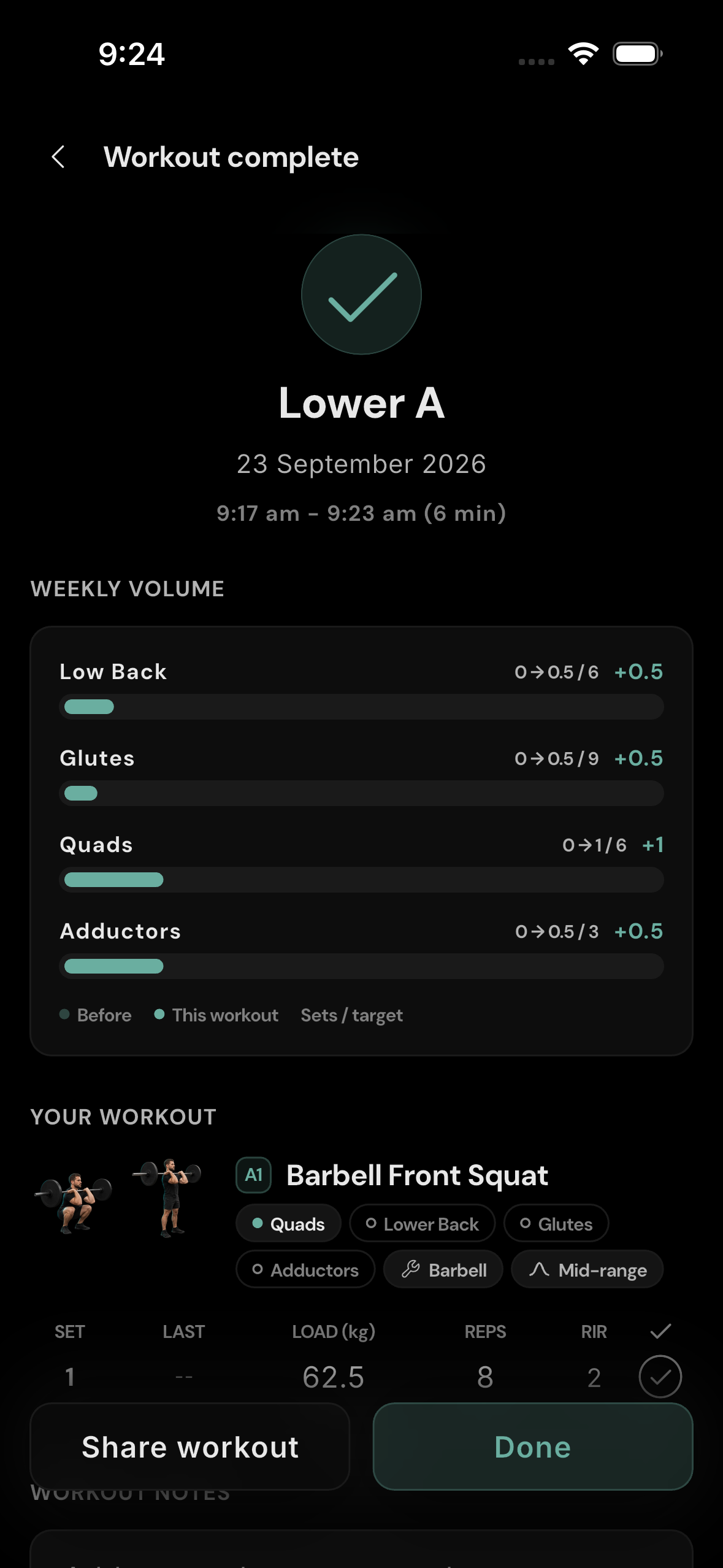
The Workout complete screen shows duration, weekly volume, the logged exercise and set details, and any records or insights available for that workout. Add Workout notes if useful, then tap Done. You can return to the session from the Lift calendar or workout history; exercise history is available from the exercise's menu or name in a workout.