Record and analyse a set
Attach a video to an individual set when you want to watch the movement back or see the available rep analysis. You can log a workout without filming anything. Recording is tied to one set row, so choose the set before you open the camera or import a clip.
Open the recording controls
During an active workout, tap the SET number beside the set you want to film. The SET ANALYSIS area in the lower panel offers Record and Import before a clip is attached. Record opens the camera; Import chooses a video already on your phone. After the clip is saved, the panel shows its processing status, then offers Review and Re-record.
You can record a working set or a warm-up. Recording controls are not offered for timed sets. If you are editing an older workout, you can attach an existing video but cannot film that past set now.
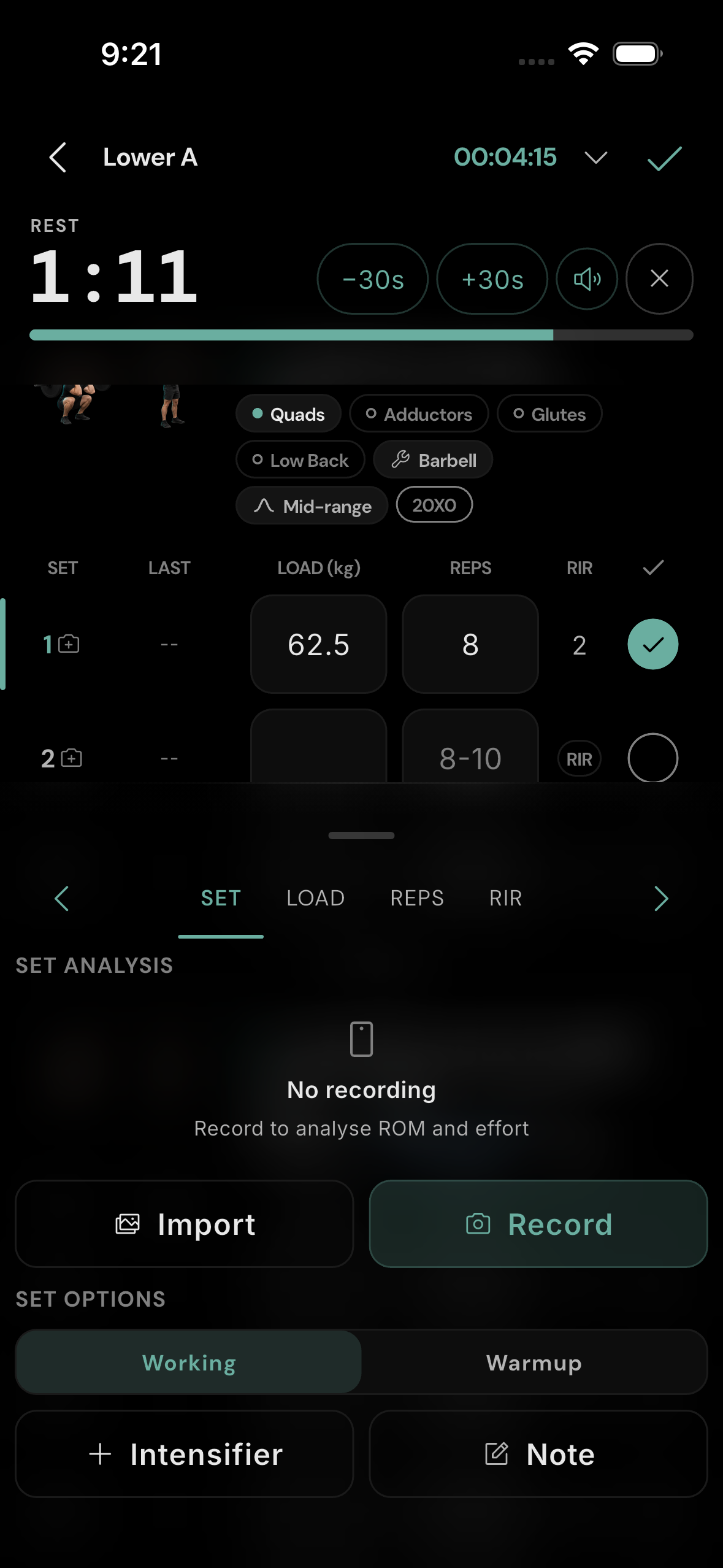
Frame and film the set
Grant camera and microphone access if your phone asks. Position the phone where your whole working movement remains visible, including the start and end of each rep. For an alternating-side exercise, follow the on-screen hint to keep both sides in view. You can switch cameras before recording; tap the preview to focus, and use zoom where your device offers it.
Tap the red record button when you are ready to begin. Recording starts immediately—there is no countdown. The camera shows elapsed time and a stop control while it records. Tap stop after the last rep. If the clip is five seconds or shorter, choose Keep clip to attach it or Discard to return to the camera and try again. The X closes the camera without attaching a new clip.
Import an existing clip
From the same SET panel, tap Import and select a video from your phone. Check that it contains the set you selected. Importing attaches the clip to that set and sends it through the same analysis process as a new recording. A clear view of the whole movement and the first rep makes the result easier to inspect.
Log reps and let the clip process
After recording or importing, return to the workout row and enter the reps you actually completed. A video alone does not complete the set. The app needs both the clip's movement data and the logged rep count before it can finish analysis. The SET panel may say Waiting for reps until you enter them, then show Reading N reps while it works. You can continue your workout while the clip processes and return through Review later.
- 01Choose a setTap its SET number.
- 02Record or importAttach one clip to that set.
- 03Log your repsEnter what you completed.
- 04ReviewWatch the clip and inspect any available analysis.
Log the load and RIR as you normally would. RIR means reps in reserve: how many more good reps you think you could have done. See how to log a set for the full workout row.
Find a recording from a past workout
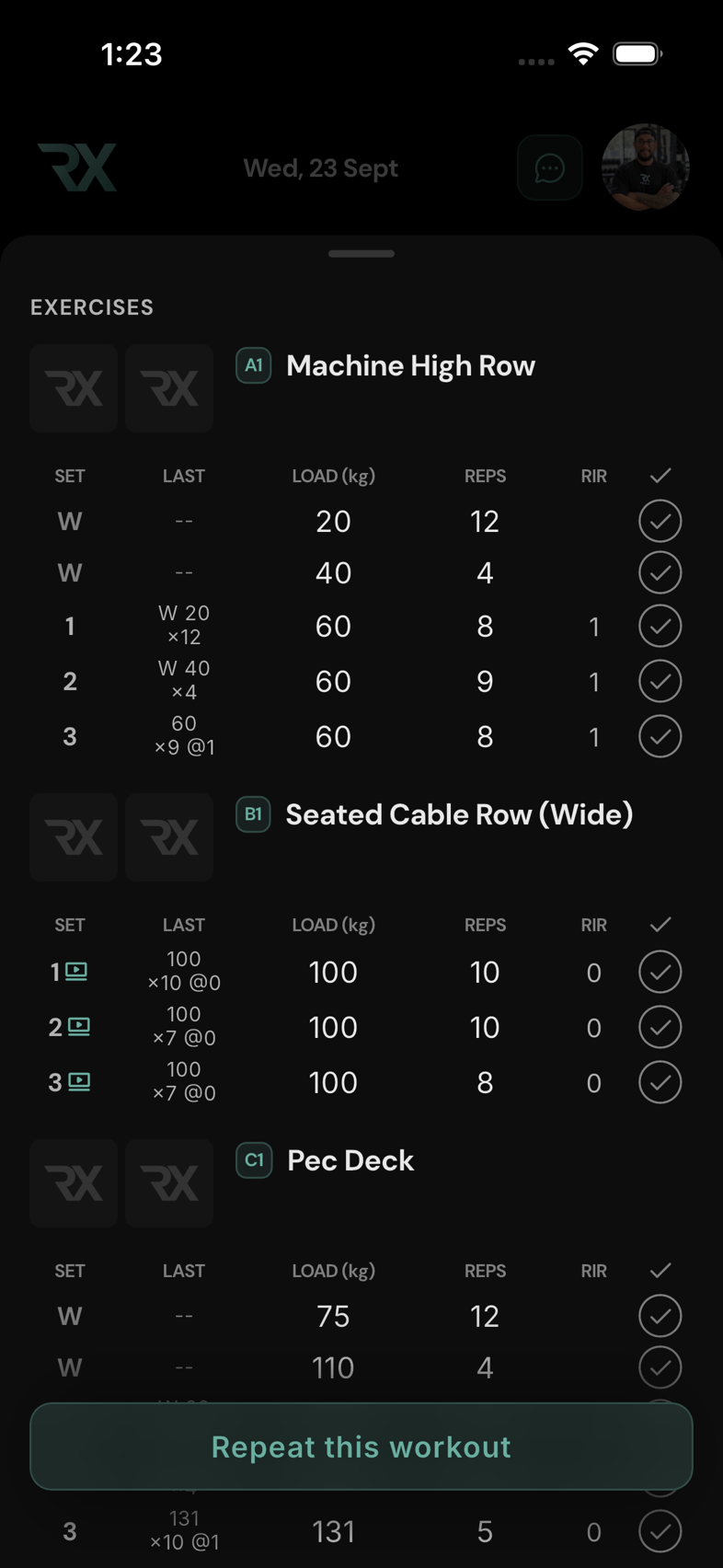
Open Lift, choose the date in the calendar, and open the completed workout. A small video icon beside a recorded set opens that set's detail page. You can watch the saved clip and inspect its analysis without starting a new workout. The historical view is for review; change logged values or replace a clip while the workout is active.
If you have just recorded a set in the current workout, tap Review in its SET panel instead. Both routes lead to the same playback and analysis view.
Watch and scrub a recorded set
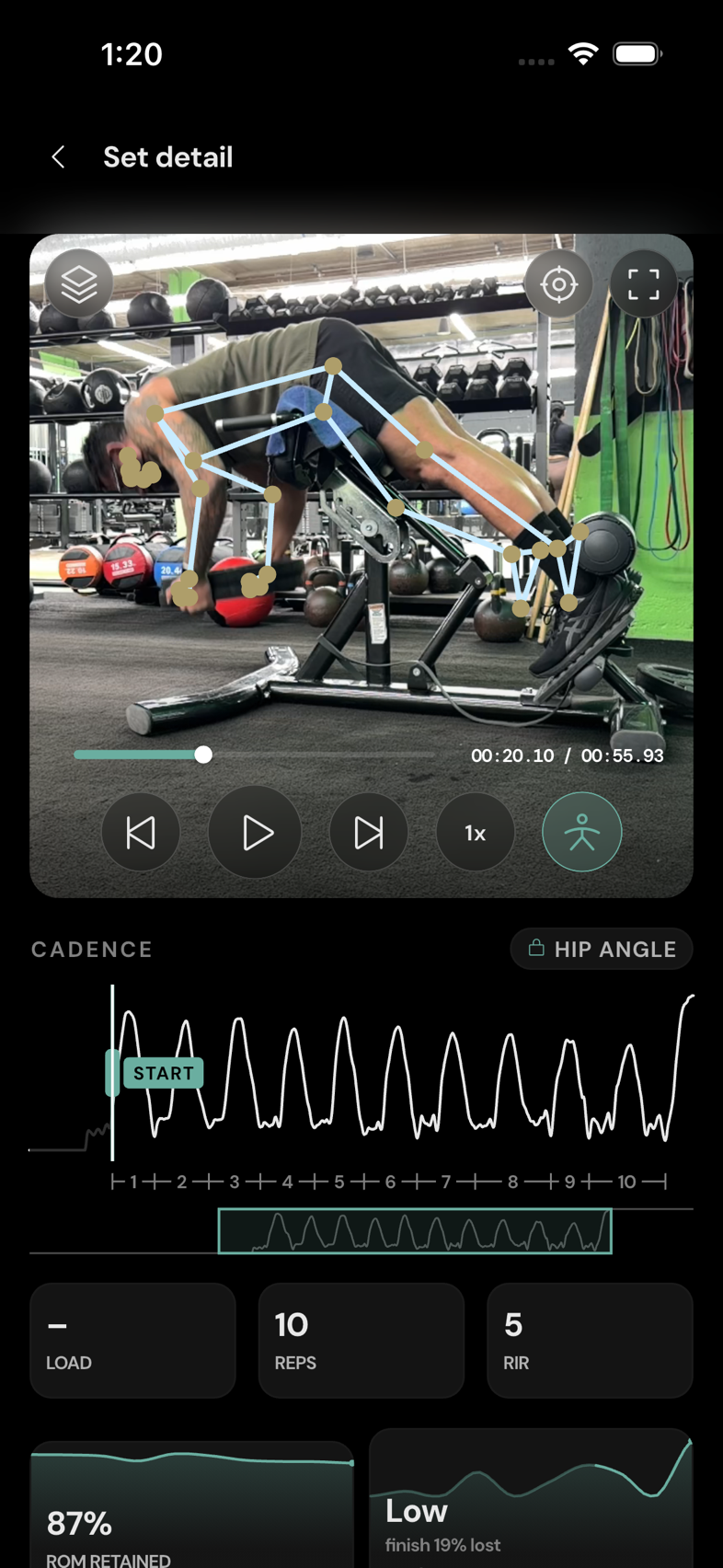
Tap the video to play or pause. Use the slider to jump through the clip, the frame buttons to move one frame at a time, and the speed button to slow or speed playback. You can show or hide the skeleton overlay, expand the video, and recenter the image after zooming. The stack icon opens a rep stack, which overlays positions from the detected reps so you can compare them visually.
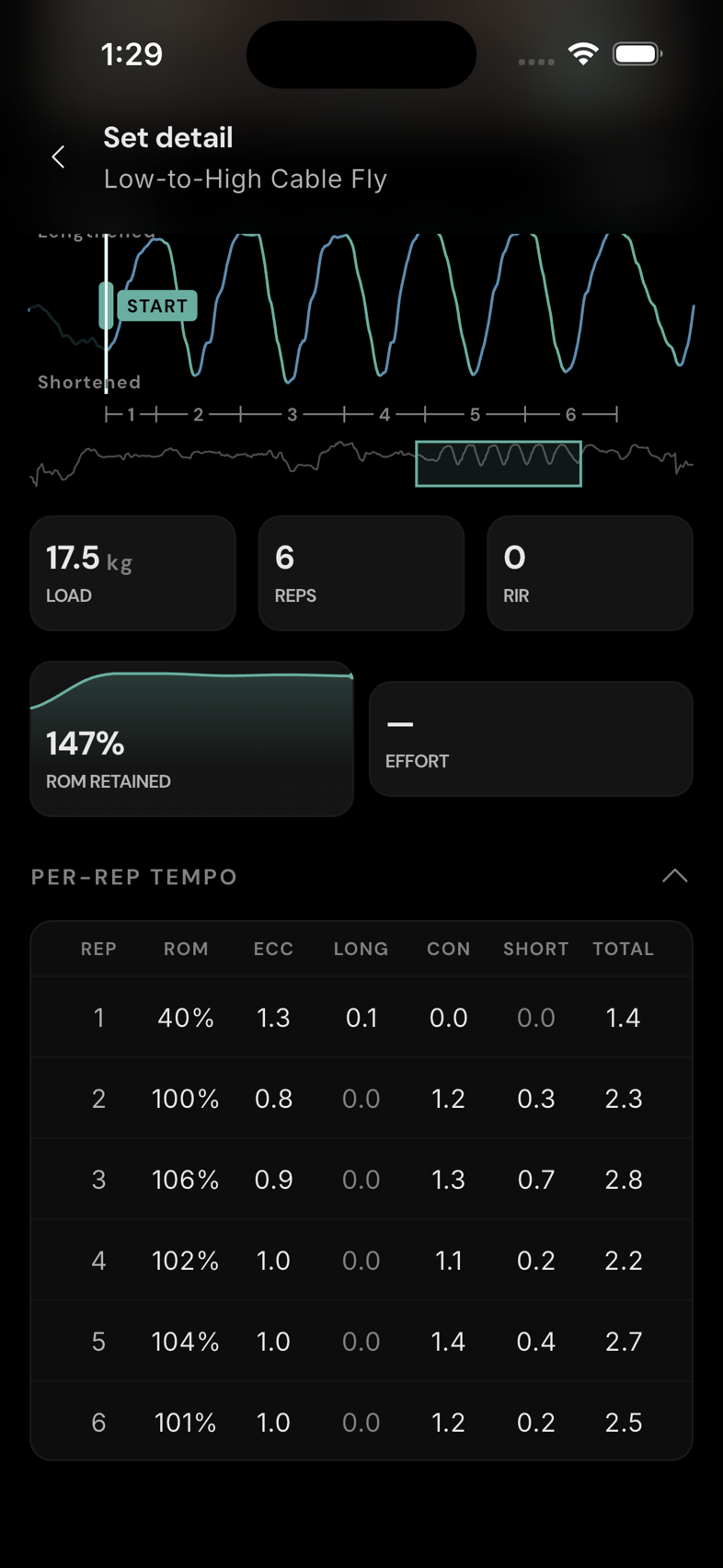
When the app has a usable movement signal, the CADENCE graph shows movement across the clip. Scrub it to examine a moment in the video; numbered peaks help you locate individual reps. START marks where the app believes the first working rep begins. The short walkthrough below shows playback, pause, and a scroll down to the analysis on a saved set.
Read ROM, effort, and per-rep timing
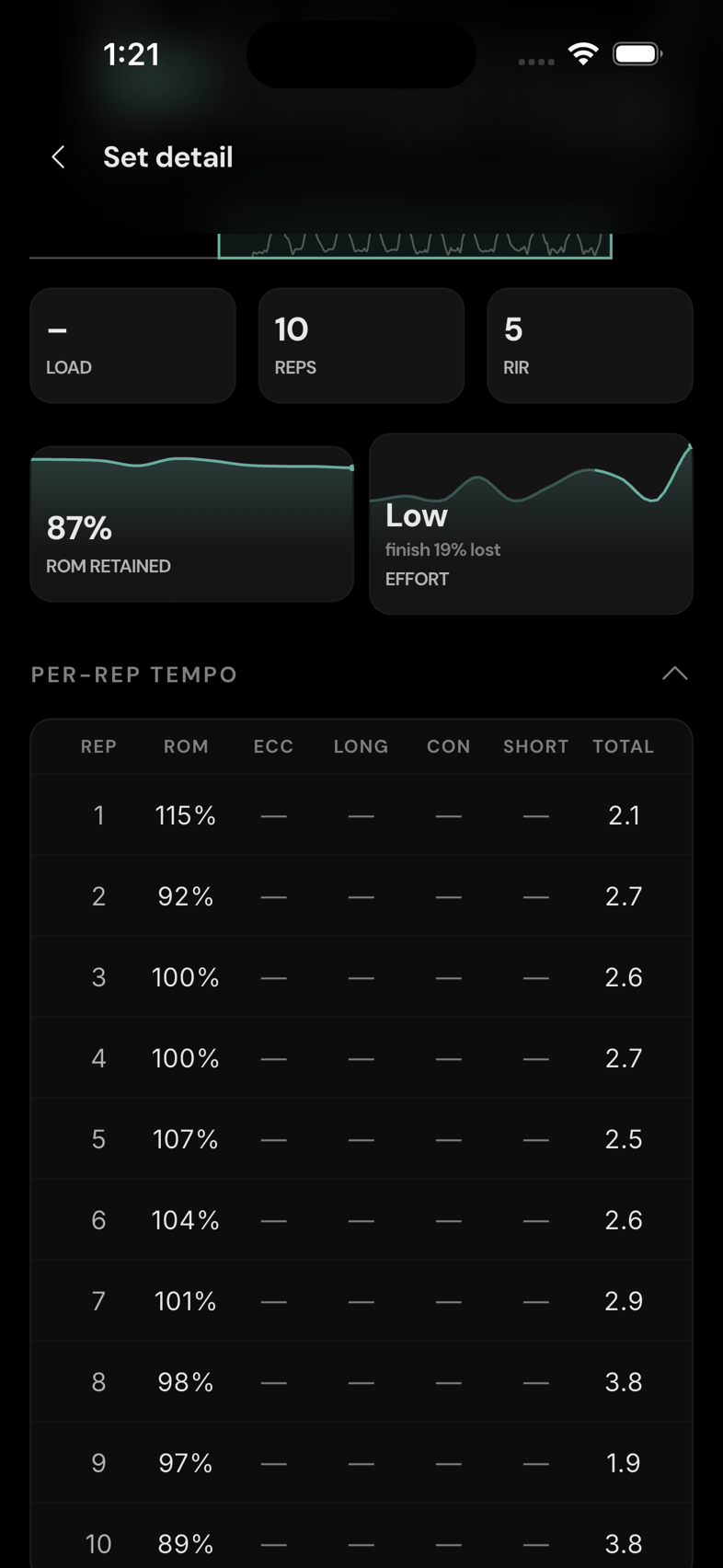
The summary and rep table answer different questions. ROM RETAINED compares range of motion near the end of this set with its earlier reps. It is a relative, within-set measure, not an absolute depth or travel measurement. A value above 100% can mean later reps travelled farther than the early baseline. Each rep's ROM column shows that rep against the fresh-rep baseline.
EFFORT describes how much the lifting phase slowed compared with fresher reps. It does not replace the RIR you logged; RIR is your estimate of how many more good reps you could have performed. Tap the information controls beside these measures to read the in-app explanations.
The rep table breaks TOTAL time into ECC (lowering or eccentric movement), LONG (pause in the lengthened position), CON (lifting or concentric movement), and SHORT (pause in the shortened position), where the app can identify those phases. Times are in seconds. Tap a rep row to jump to that rep in the video. A dash means the app did not produce a value for that measure; it does not mean zero seconds or zero effort. For some single-side or alternating movements, left and right results appear separately.
These measures describe the clip the app could read. Use the video and your own knowledge of the set alongside them, especially if part of your body was hidden or the framing changed.
Correct the logged set or the detected start
Check LOAD, REPS, and RIR on the detail page against what you did. You can edit these values there while the workout is active; a historical recording opens read-only. A suggested rep count or estimated RIR is a prompt to check, not a replacement for your own entry. Warm-up sets do not use RIR.
If the cadence graph starts before or after your first working rep, drag its START handle to the point where that rep begins. The video previews the point as you move the handle, and the app reads the set again. Reset to auto appears after you move the handle; tap it to restore the automatically detected start. Where side results are available, inspect each side's cadence and timing before drawing conclusions from the overall set.
If the analysis is limited
Still processing means the video is saved but analysis has not finished; come back shortly. A low-confidence result can still show measures, but treat them as approximate. Inconclusive means the app could not make a reliable rep read. It keeps your logged load, reps, and RIR, but withholds rep-derived ROM, effort, and tempo. A cadence trace may still appear if the clip contains a usable movement signal.
You can always watch the clip and log the set yourself. If the camera could not see the movement, film again with your whole body in frame and a clear view of the first rep. For a filmed set you leave unfinished, the workout finish flow asks whether to keep its clip for later logging or discard it.
Re-record or discard a clip
During an active workout, use Re-record in the SET panel or the set detail menu to replace a clip. The confirmation explains that the existing recording and its analysis will be replaced. Discard in the detail menu deletes that set's video and analysis after confirmation; it cannot be undone. The logged workout values remain available to edit separately.