Create a training
program manually
Choose your workouts, put rest days between them, and repeat the sequence on your calendar. You can build and save a program before deciding to make it active.
Quick start
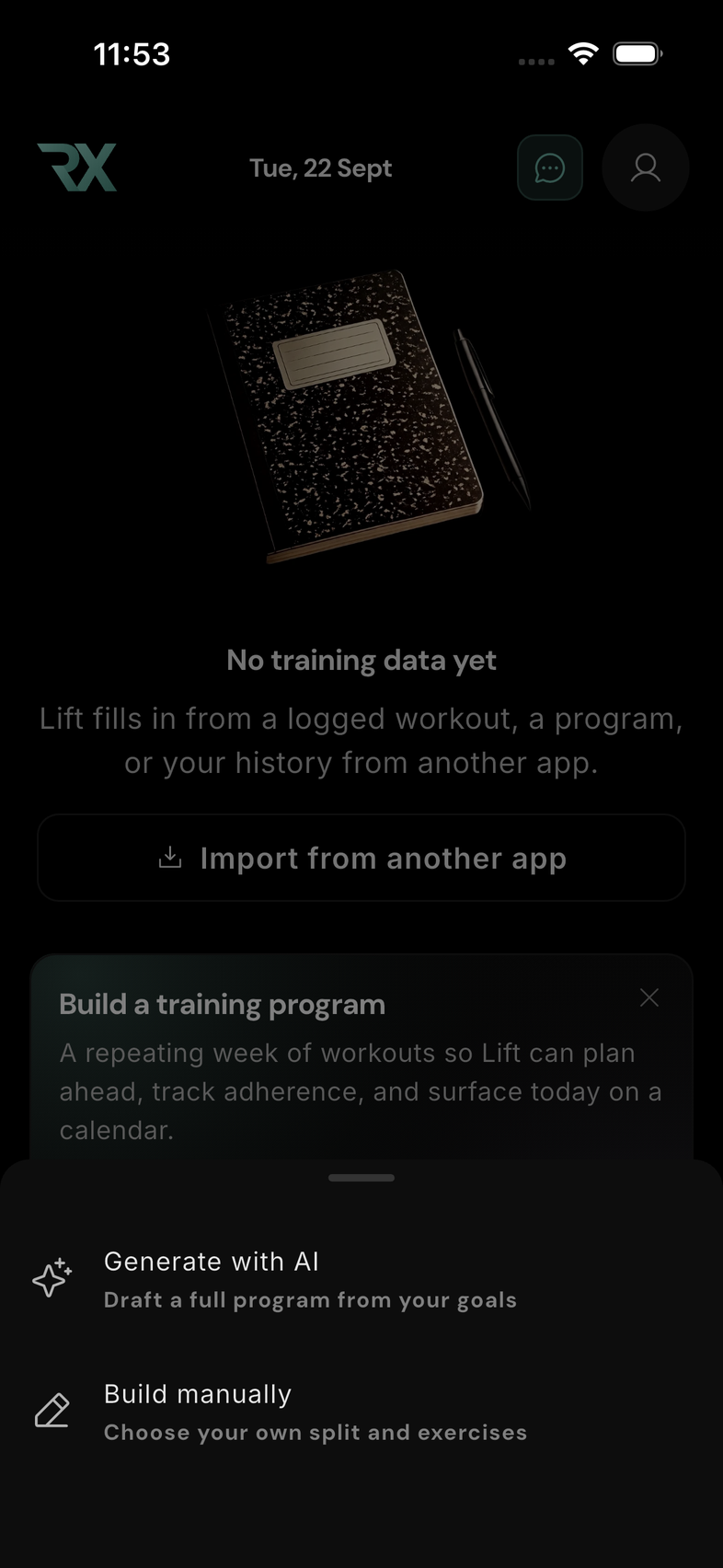
- Open Lift, tap +, then choose Build a program → Build manually. You can also open Programs from the navigation menu, tap +, and choose Build manually.
- Open Overview, tap the program name, and give it a useful name, such as Upper / Lower.
- Open Workout 1. Tap its name to rename it Upper A.
- Tap Add exercise, choose your exercises, and confirm the selection.
- Tap each exercise's sets-and-reps chip to adjust its prescription.
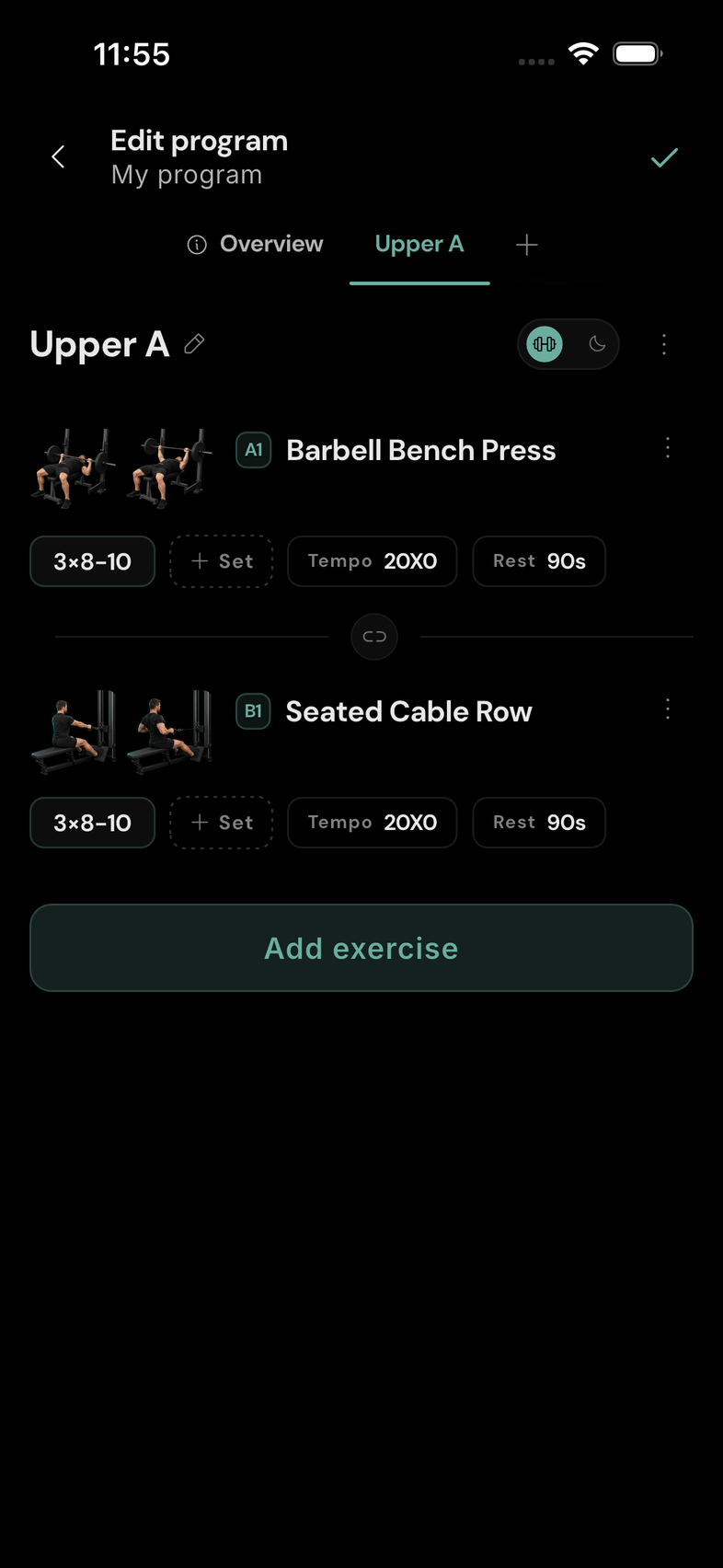
- Use + at the end of the day tabs to add more days. Use the workout/rest switch beside a day's name to make it a rest day.
- Check Overview, then tap the checkmark at the top right. Choose Just save or Save and activate.
The editor holds a draft until you save. A checkmark on a number pad finishes that input; the checkmark at the top of the program saves the whole program.
Understand the rotation
A program is an ordered, repeating sequence of days. Each day is either a workout or a rest day. A “slot” in the menus means one of these days.
The sequence advances with calendar days, not only when you finish a workout. Include rest days wherever you want a day without scheduled training.
For example, a seven-day Upper / Lower program could be: Upper A → Lower A → Rest → Upper B → Lower B → Rest → Rest. This is an example of the structure, not a prescribed training plan. A four-day sequence repeats every four days; it does not automatically stretch across a week.
Add and name days
- Tap + after the day tabs to append a new workout day. Swipe the tab strip horizontally if the end is offscreen.
- Select a day tab to edit it. Tap the name beside the pencil to rename it, or choose More options → Rename slot.
- Rename the whole program by tapping its name in Overview.
- Names that are already in use may receive a number so you can tell them apart.
Set a rest day
- Select the day you want to change, or add a new day with +.
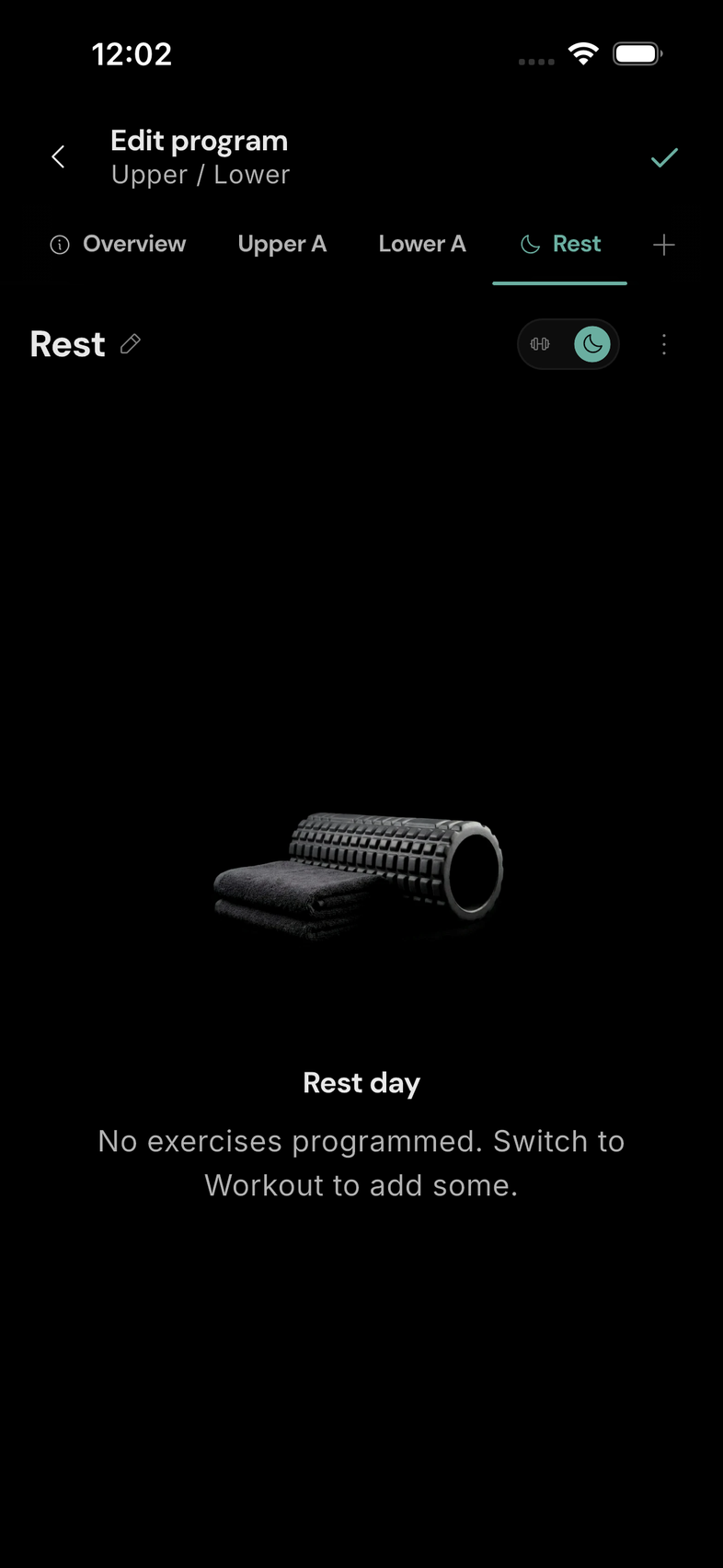
- Tap the small workout/rest switch beside the day's name. The rest position uses a moon icon.
- Confirm that the page says Rest day and the tab shows a rest icon.
The day stays in the rotation. Turning a workout into a rest day hides its exercises; switching it back restores them. If you previously aligned that workout to a weekday, turning it into a rest day removes that alignment. The next section explains weekday anchors.
Rest days and rest timers are different. A rest day reserves a whole day in your program. An exercise's rest timer is the pause between sets or rounds within a workout.
Anchor a workout to a weekday
A weekday anchor aligns one workout in your repeating sequence with a chosen weekday when the program starts. For example, you can align Upper A with Monday. The other workout and rest days keep their order around it.
Without an anchor, the program starts with the first day in your list on the day you activate it. With an anchor, it starts at the position needed to put your selected workout on the first available occurrence of its chosen weekday, including today when it matches. Today's scheduled day may therefore be a different day from the first one in your list.
An anchor aligns the rotation; it does not turn it into a weekly timetable. A seven-day rotation keeps the same weekday pattern. A rotation whose length is not a multiple of seven moves across weekdays on later cycles.
Set or change an anchor
- Select the workout day you want to align, such as Upper A.
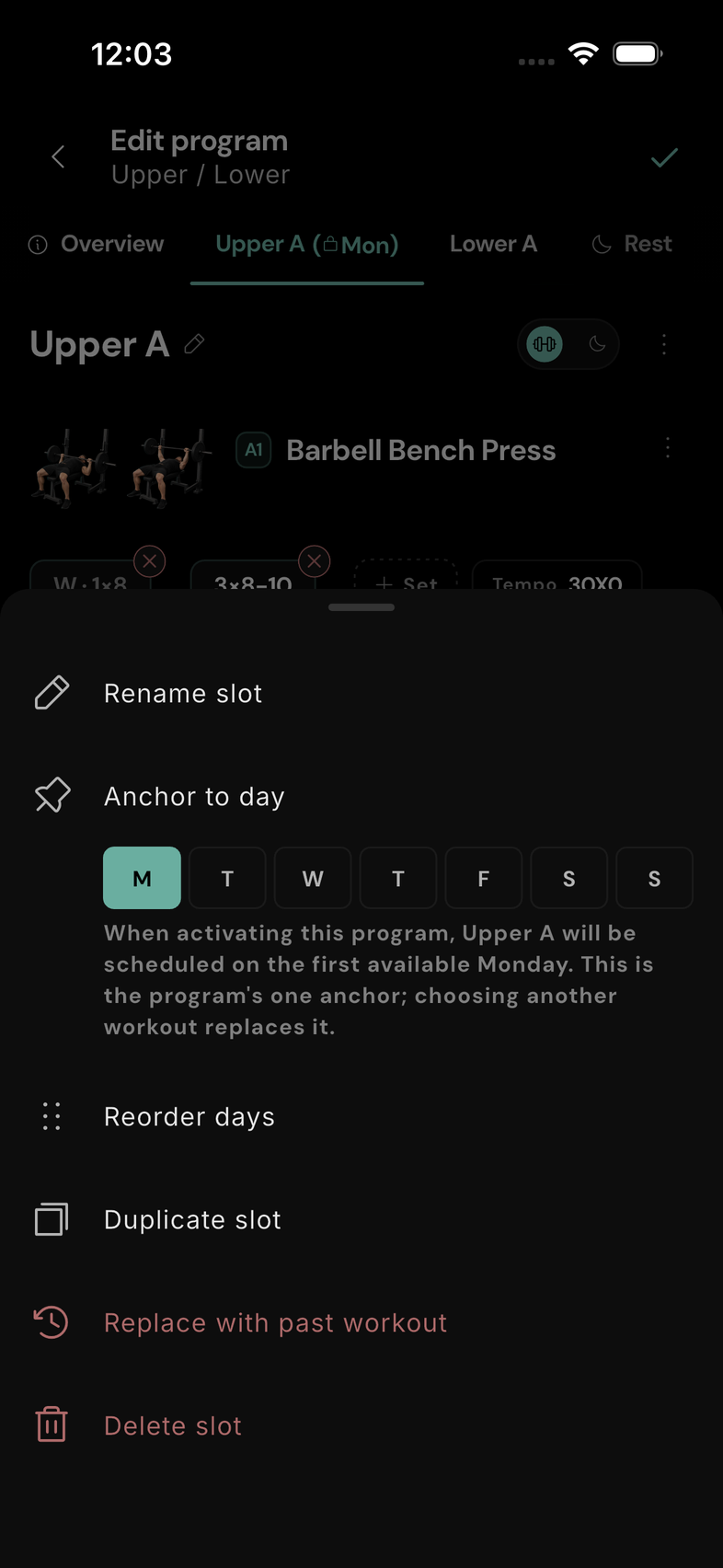
- Tap More options (the three dots beside the workout/rest switch).
- Under Anchor to day, tap the weekday. The chips run Monday to Sunday.
- Dismiss the menu. The day tab displays the anchor and weekday.
Tap the selected weekday again to remove the anchor. A program has one workout anchor, and rest days cannot be anchored. Anchoring a different workout replaces the existing anchor.
When editing an already active program, changing its anchor realigns the schedule when you save. Check the calendar afterward.
Compare schedules with and without an anchor
Now that you know how the rotation and its optional anchor work, compare the same activation date in four cases: seven-day and four-day programs, each with and without an anchor. Activation means starting the saved program on your calendar; the Save and activate section explains how to do that.
Same activation date. Four different schedules.
All four examples activate on Tuesday 22 September. Read each calendar left to right, then down. The dates run from 21 September to 11 October. Workout names use the same abbreviations as the app:
UA starts on Tuesday and returns every Tuesday. A seven-day rotation already repeats on the same weekdays.
Tuesday starts with LA. UA lands on Monday 28 September and stays on Mondays in later cycles.
UA starts on Tuesday, then returns Saturday, Wednesday, Sunday… The four-day cycle moves across weekdays.
UA lands on Monday 28 September, then Friday 2 October and Tuesday 6 October. The anchor does not keep it on Mondays.
Gold top edge: activation dayTeal outline: Monday anchor
A rotation starts running immediately. In the anchored four-day example, UA also occurs on Thursday 24 September before the chosen Monday. The anchor aligns the repeating sequence; it does not delay training until Monday.
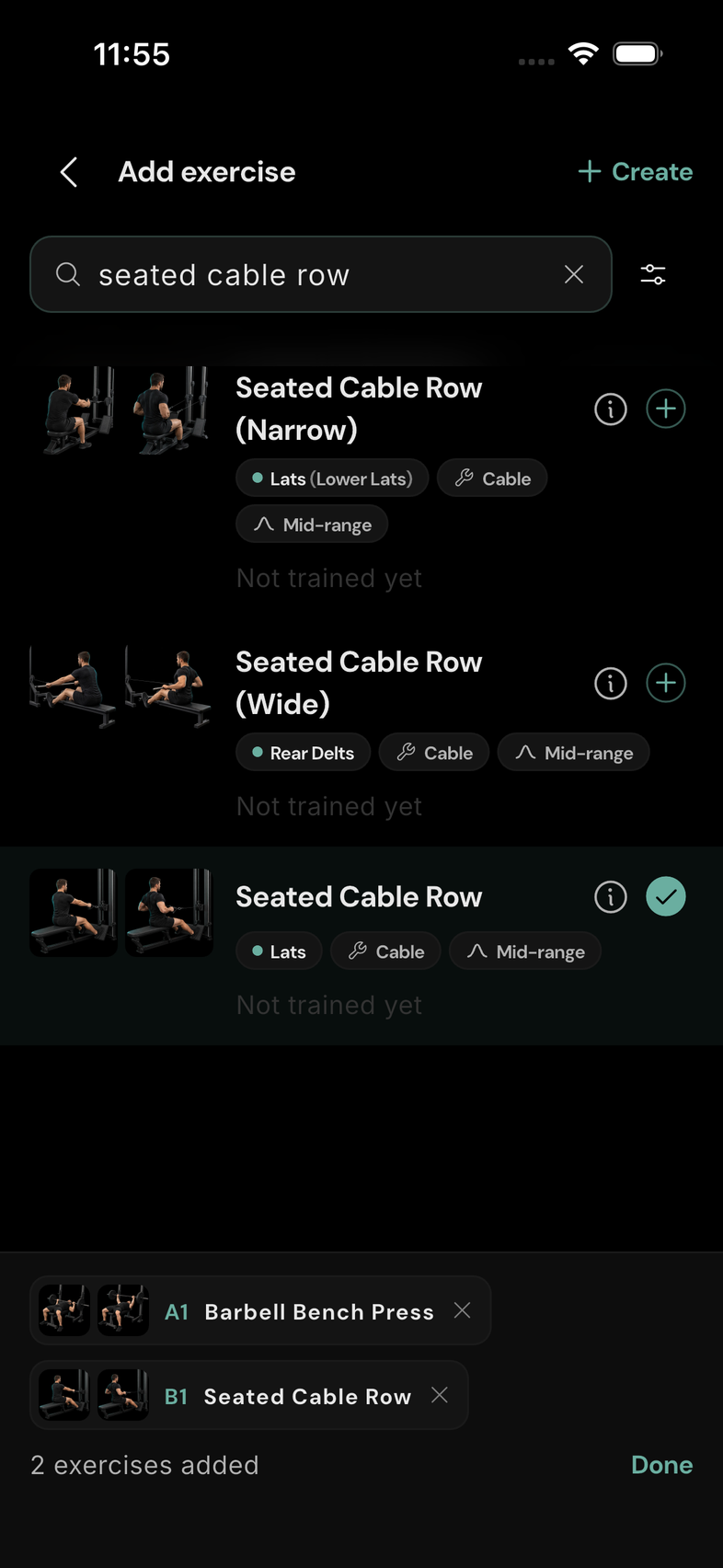
Add exercises
- Open a workout day and tap Add exercise.
- Search or browse the exercise library, tap + beside each exercise you want, then tap Done.
- Review the exercise rows in your day and adjust their sets, reps, tempo, and rest as needed.
You can return to Add exercise to add more. Choose the exercise variation and equipment you intend to use.
Set sets, reps, and warm-ups
A rep (repetition) is one complete movement of an exercise. A set is a group of repetitions performed before resting.
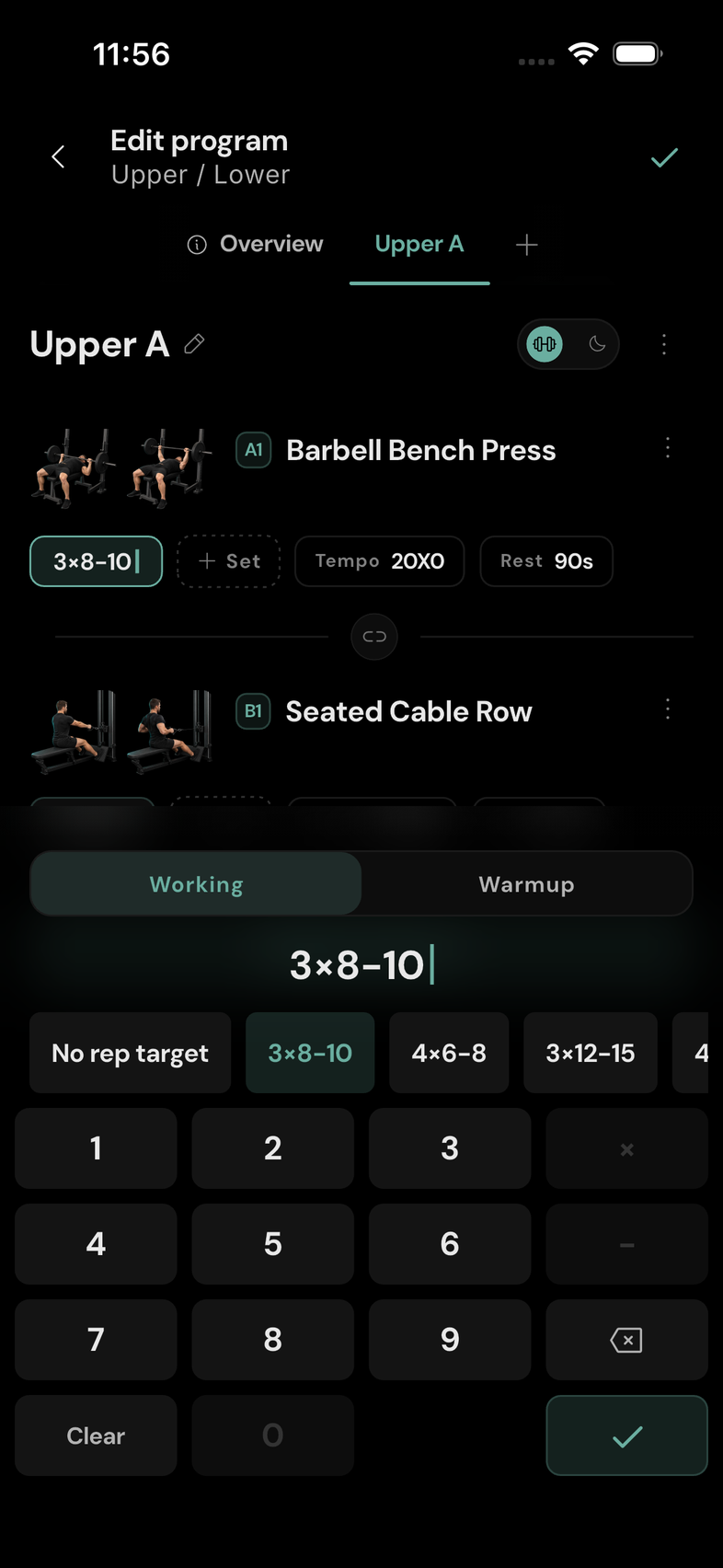
Tap the sets-and-reps chip beneath an exercise. 3 × 8–10 means three sets of 8 to 10 reps each. Do 8–10 reps, rest, then do the next set. For example, 10 reps in your first set, 9 in your second, and 8 in your third all fall within that target. 3 × 10 means three sets with a target of exactly 10 reps each.
Do 8 to 10 repetitions, rest, then repeat until you have completed three sets. Each set has its own rep target; 8–10 is not the total across all three.
A rep range is the lower and upper target for each set. A working set is part of your main planned work; a warm-up set prepares you for it. In this editor, each chip is a group of sets with the same targets.
- Choose a shortcut, such as 3×8-10, for a quick setup. A scheme shortcut applies the value and closes the pad.
- For a custom prescription, use the number pad's × and − keys to enter sets, a rep target, or a rep range, then tap the pad's checkmark.
- Choose No rep target if you want a set count without prescribed reps.
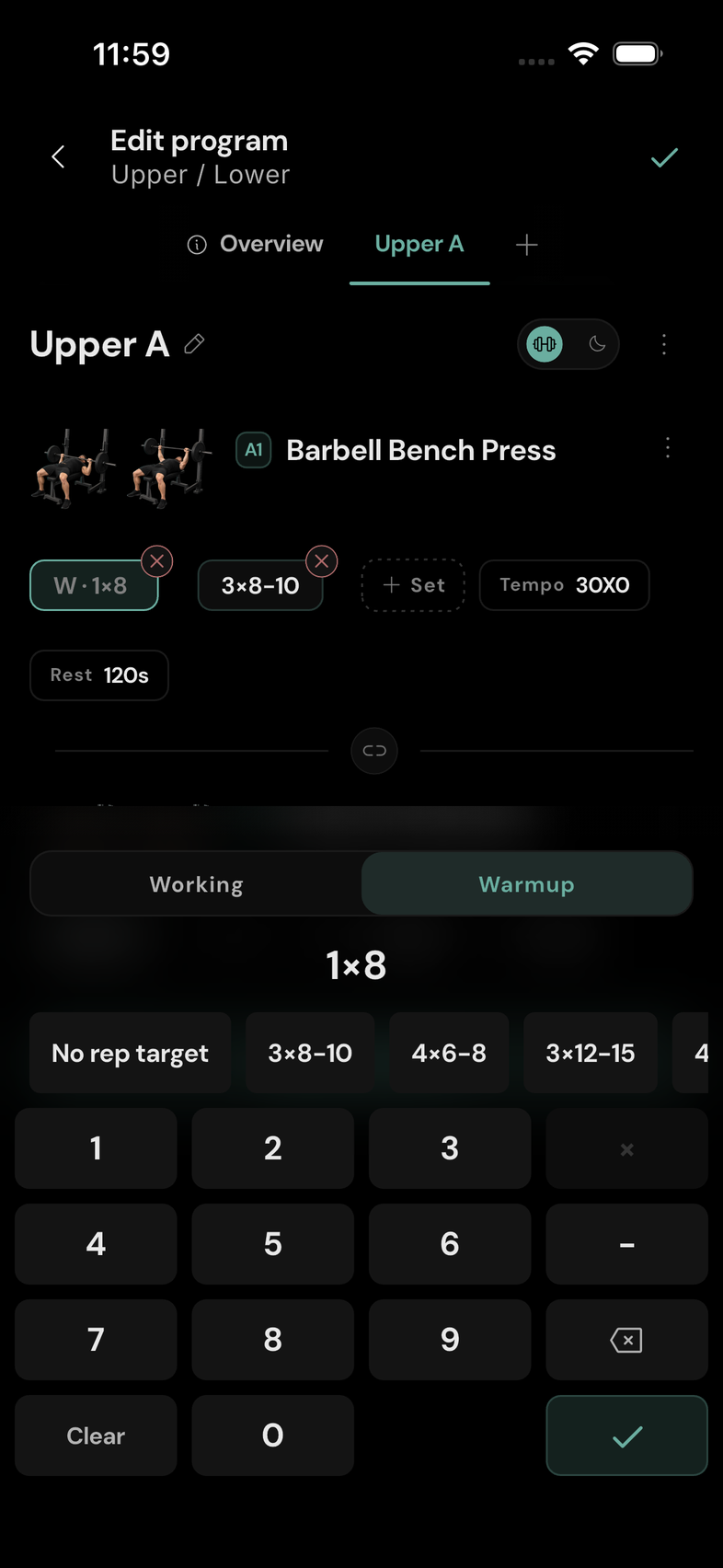
- Tap + Set to add another group of sets, for example a warm-up group followed by working sets. Each chip can represent more than one set.
- Open a group's chip and select Warmup or Working. Check its sets and reps before confirming.
- When multiple groups exist, use a chip's small × delete control to remove that group. You cannot remove the final group this way; delete the exercise row to remove the exercise entirely.
For exercises that use duration tracking, the chip and number pad use seconds instead of a rep target. Set the duration for each set; rep ranges do not apply to timed sets.
These are planned targets. Record the weight and reps you actually perform when logging the workout.
Set rest between sets
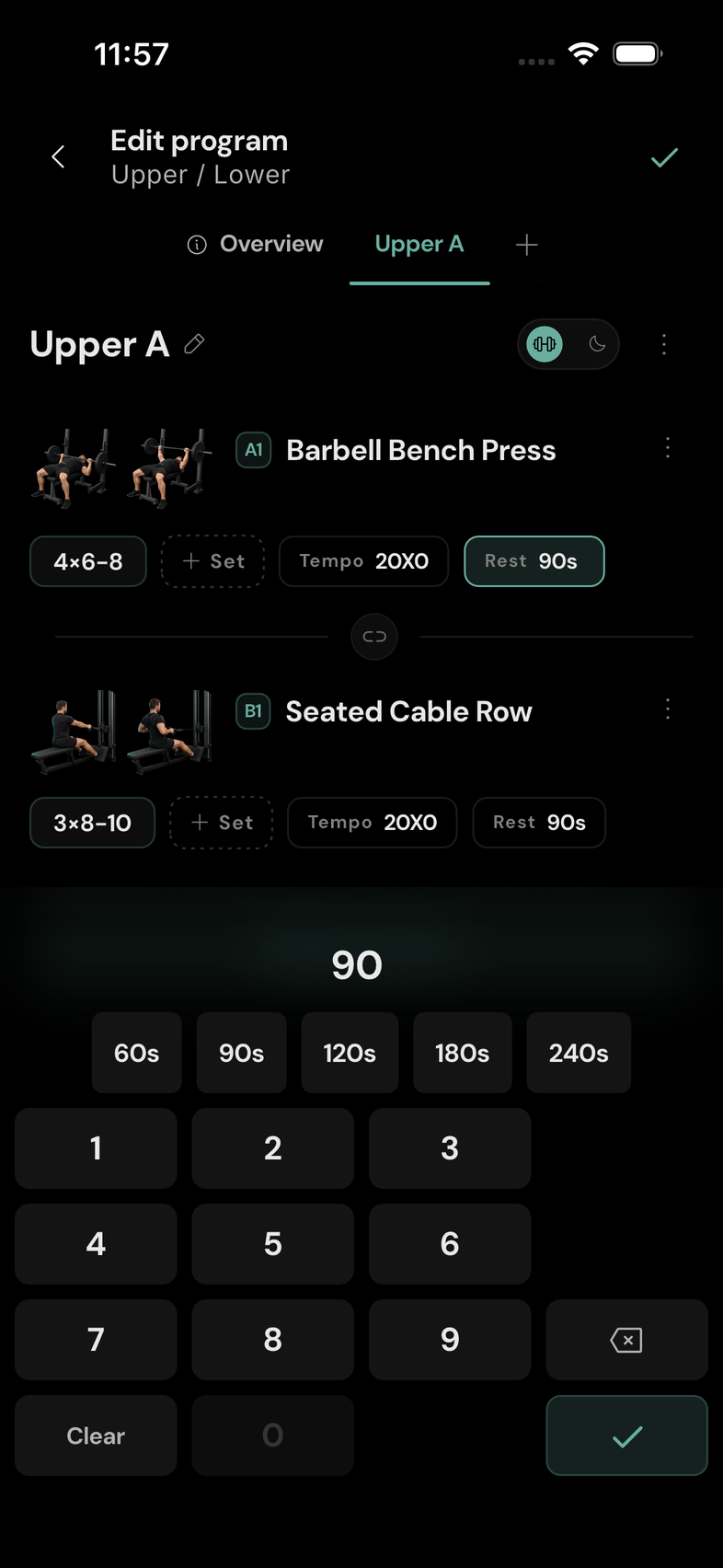
Tap the exercise's rest chip, choose a shortcut or enter a number of seconds, then tap the number pad's checkmark. For example, 120 seconds is two minutes.
If you later link exercises into a superset, the rest chip appears on the last exercise in the group. It controls the rest after the round, rather than a separate pause between each linked exercise.
Set exercise tempo
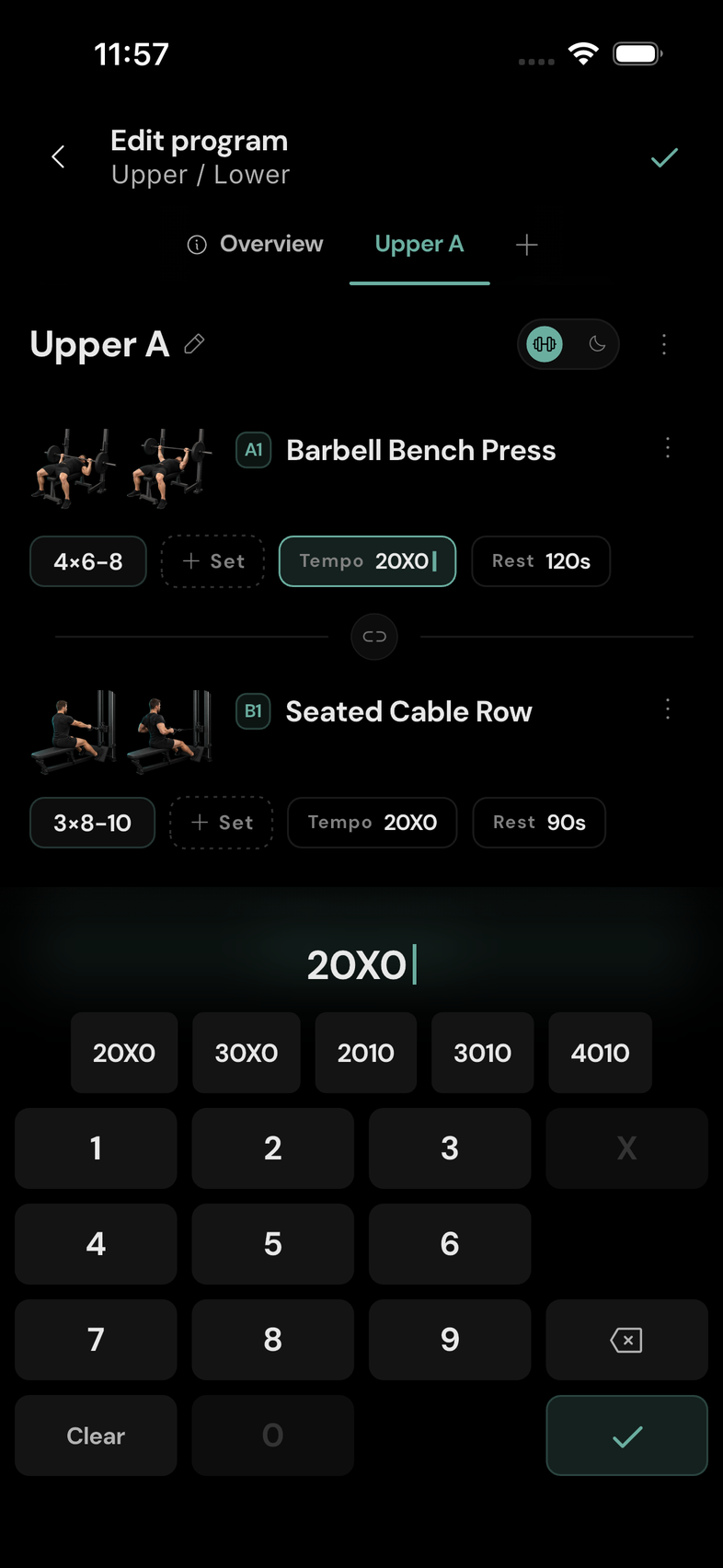
Tap the exercise's tempo chip and choose a shortcut or enter a four-character tempo, then confirm with the number pad's checkmark.
The four positions describe lowering → pause at the bottom → lifting → pause at the top. For example, 30X0 means three seconds lowering, no bottom pause, an explosive lifting phase, and no top pause. X is available for the lifting position.
Link exercises into a superset
A superset groups exercises that you perform one after another before resting. One pass through the linked exercises is a round.
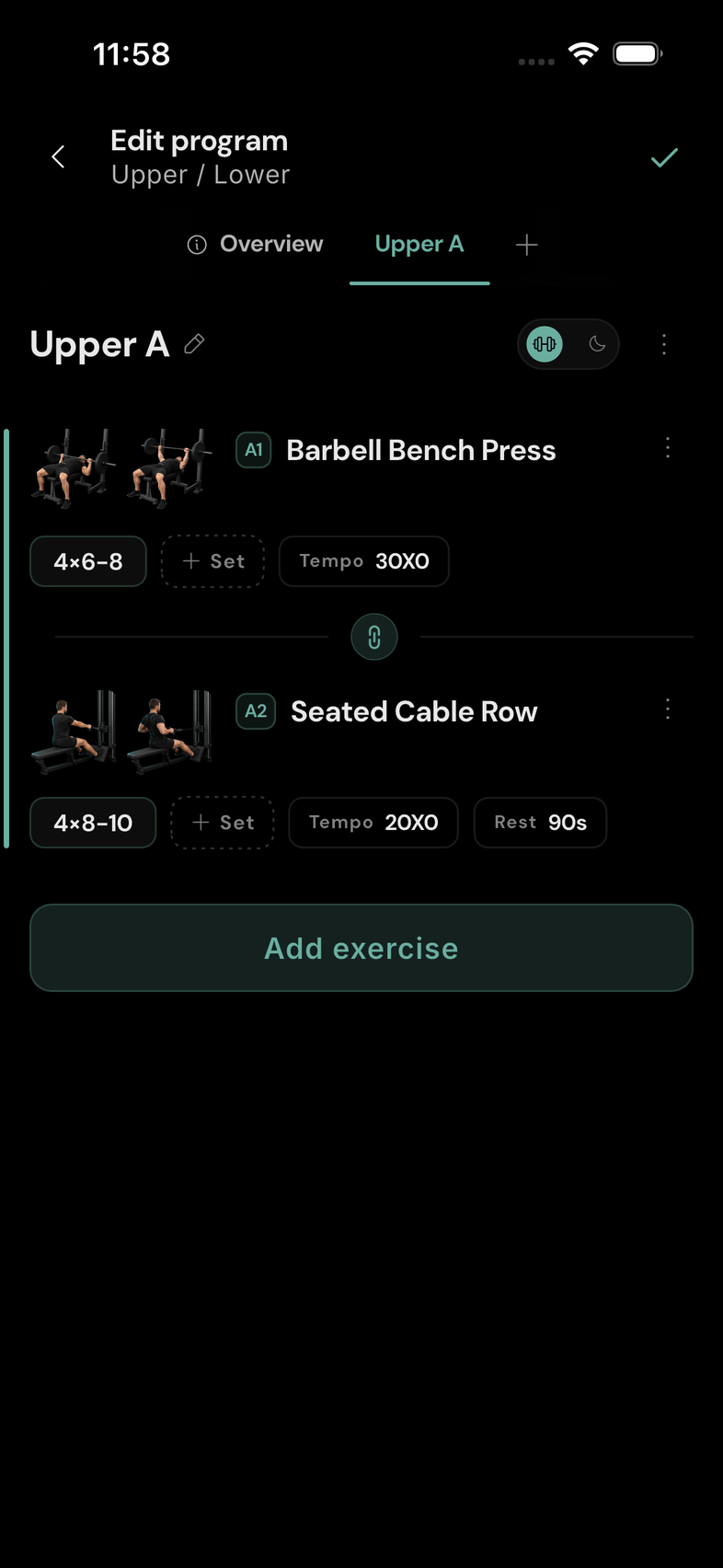
Put the exercises next to each other, then tap the link control between their rows. They become a linked group. Link another neighbouring row to extend the group; tap an existing link again to separate the exercises there.
Linked exercises share the number of set groups and the sets in each group. Linking adopts the preceding row's set structure for the next row. Rep targets remain specific to each exercise, so review both rows after linking. Changing the set count or adding or removing a group also updates its linked partners.
The group's rest control sits on its final row.
Reorder, copy, replace, or remove
Days
Open a day's More options menu:
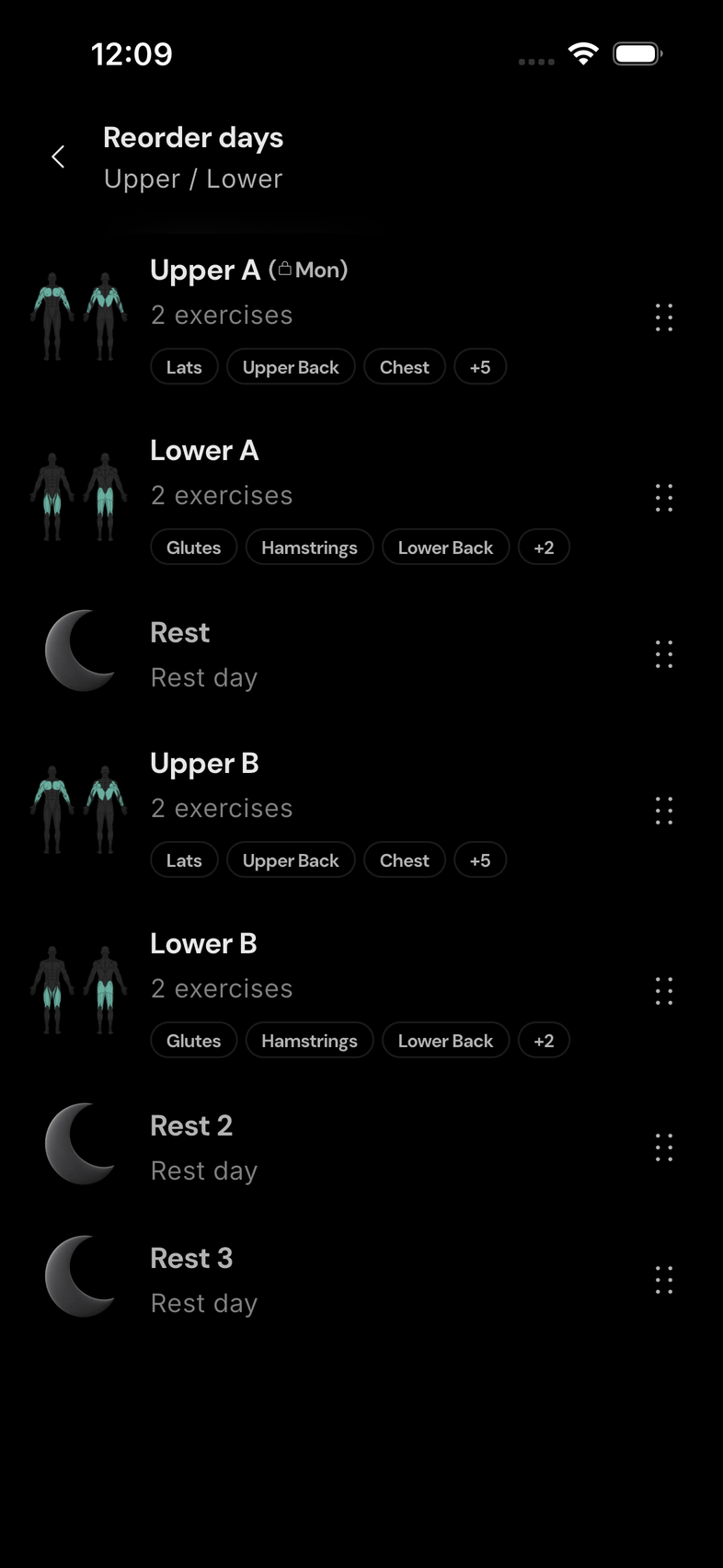
- Reorder days: drag the handles to move workouts and rest days into the right order, then return to the editor. This option appears when there is more than one day.
- Duplicate slot: copy the day and its exercises. A weekday anchor is not copied.
- Delete slot: remove the day and its exercises after confirming. The program must keep at least one day.
Exercises
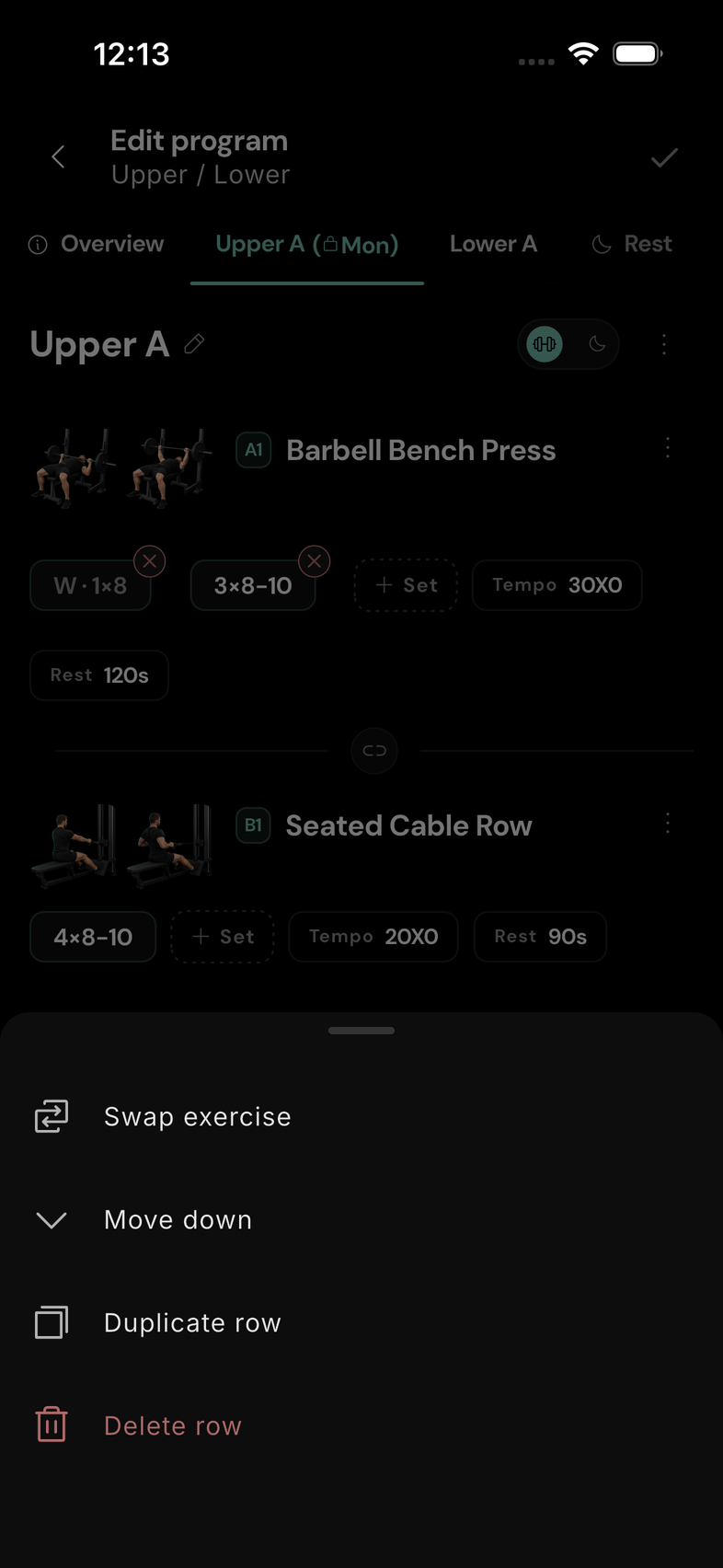
Open the three-dot menu on the exercise row:
- Move up / Move down: change the exercise order. The available directions depend on its position.
- Duplicate row: make another copy of the exercise row.
- Swap exercise: choose a replacement. Review the prescription afterward, especially when changing between rep-based and timed exercises, because the target type changes.
- Delete row: remove that exercise from the day.
Reuse exercises from a past workout
On an empty workout day, tap From a past workout, choose a logged workout, then Use this workout to bring in its exercises. This button is shown only while the day has no exercises.
To replace a day's existing exercise list, choose More options → Replace with past workout and select the workout. Choosing this on a rest day also turns it into a workout day.
Review the prescriptions afterward. This imports the exercises with the builder's defaults; it does not copy the weights and set prescriptions you logged in the past workout. If you have no workout history, log a workout first.
Review the whole program
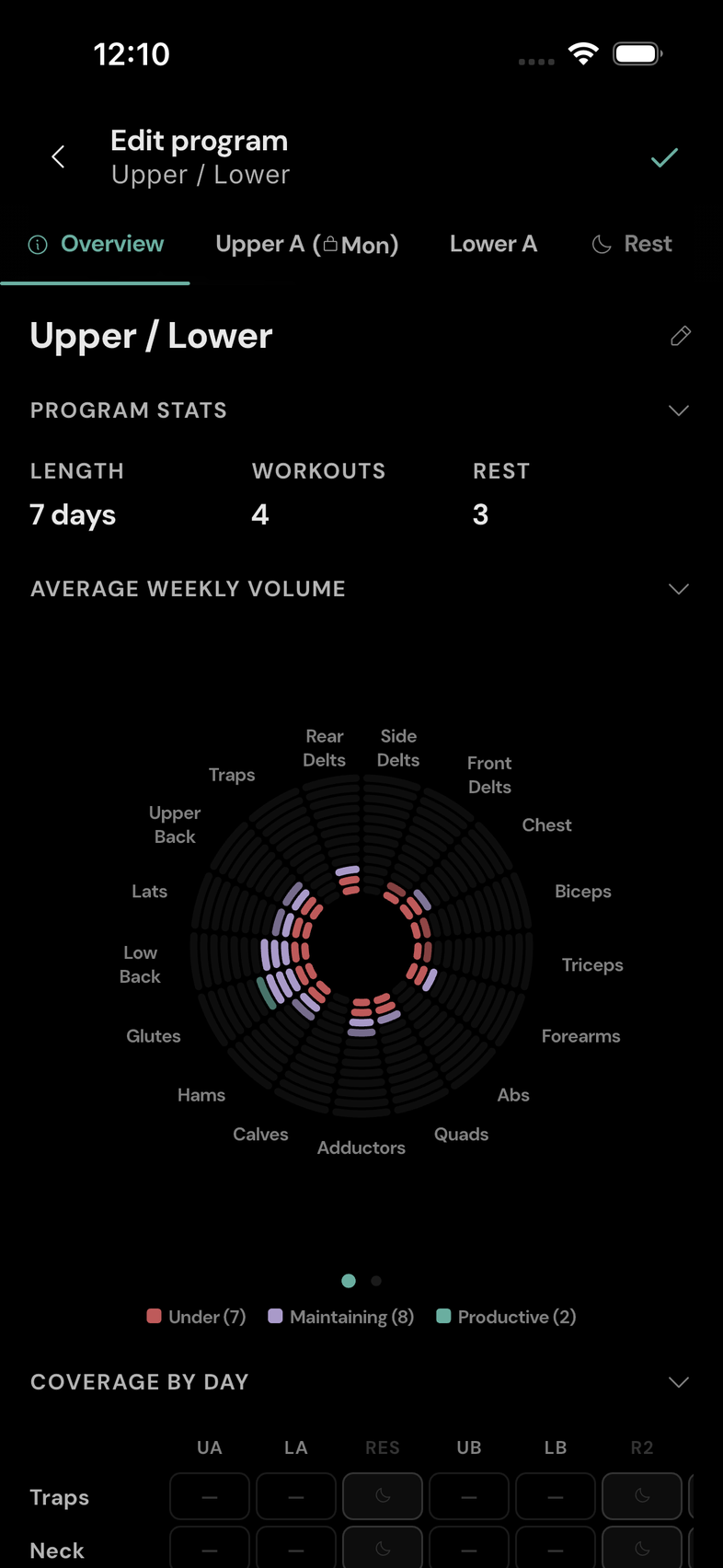
Open Overview to see:
- Program stats: rotation length, workout days, and rest days.
- Average weekly volume: programmed training volume expressed as a weekly average, including when the rotation is not seven days long.
- Coverage by day: which muscle groups your days cover.
- Workouts: the program's exercise prescriptions together.
Check the day order, rest days, exercise choices, and targets before saving. Volume here describes your plan, rather than completed training.
Save and activate
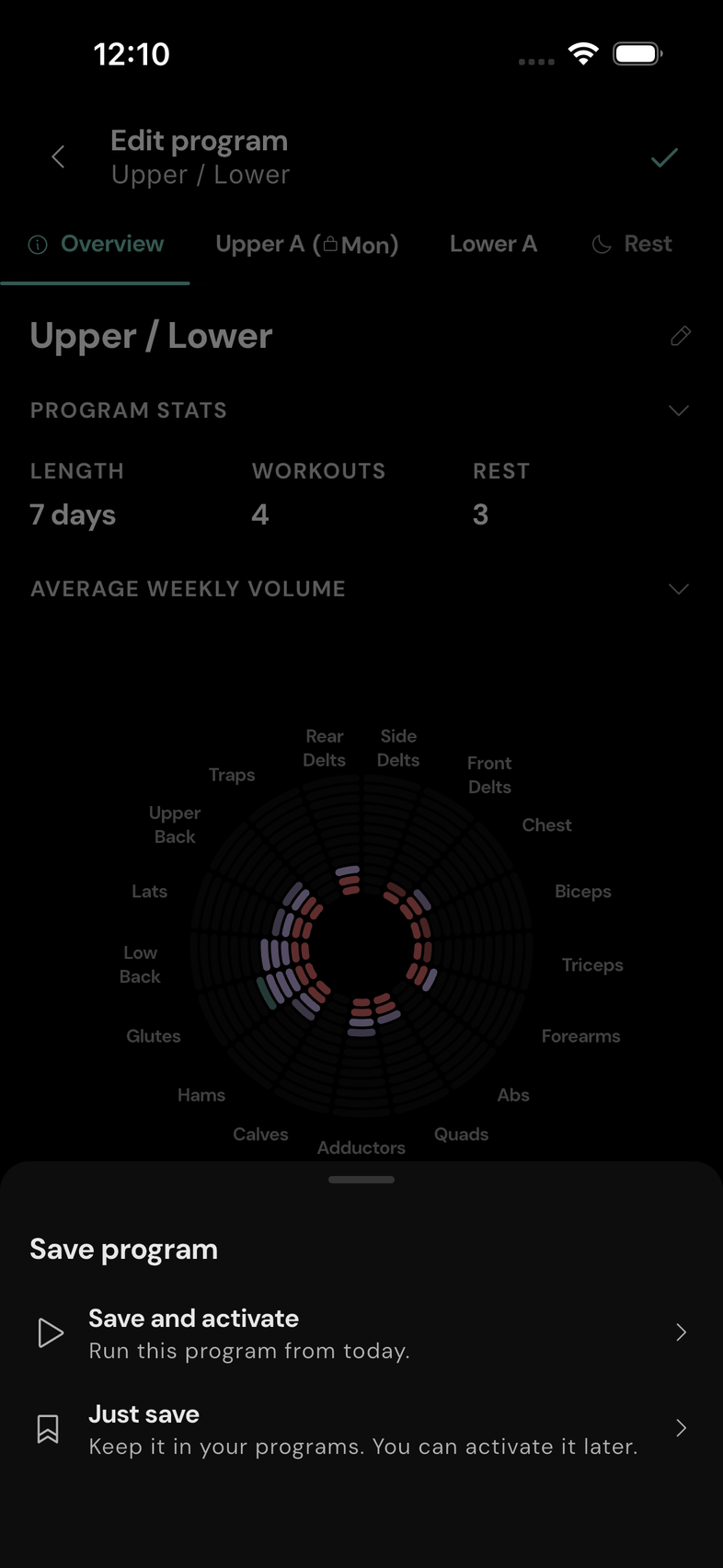
Tap the checkmark at the top right of the editor. For a new program, choose:
- Just save: keep it in Programs and leave your current active program alone. You can finish or activate it later.
- Save and activate: save it and begin its calendar rotation from today, using its anchor if it has one. Only one program can be active. If another is running, this replaces it; the previous program is kept.
Dismissing the save-choice sheet leaves your draft open and does not save it. Backing out of a new or changed program asks whether to discard the unsaved work.
To return to a saved program, open the navigation menu, choose Lift → Programs, and tap the program. Choose Edit program to change it, or Make active to start an inactive program.
When editing a saved program, the top checkmark saves your changes without asking you to choose its activation status again.
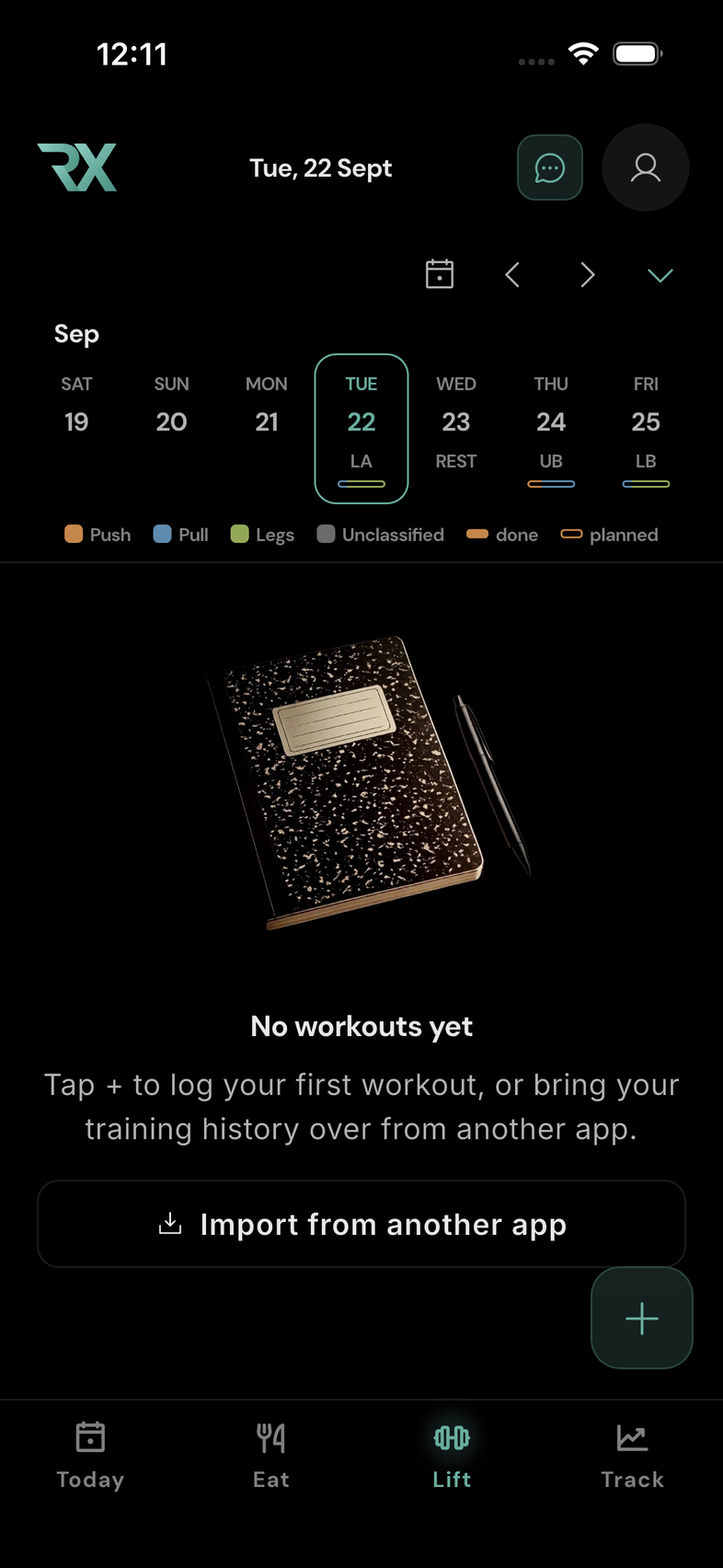
After activating, check the Lift calendar to confirm the scheduled days. On a scheduled workout day with exercises, use Lift → + → Today's workout to begin logging.
Common questions
Why does it schedule training every day?
Every slot is currently a workout day. Add explicit rest days to the rotation. RESISTX warns you when activating a program without rest days.
Why is today's workout not Workout 1?
A weekday anchor can shift the rotation so the selected workout lands on its chosen weekday. Check the anchor and the calendar.
Why can't I anchor a rest day or two different workouts?
The program supports one anchor, attached to a workout day. Other days follow its position in the rotation.
Can I save an unfinished program?
Yes. Choose Just save and return to it later. If you try to activate a program without exercises, RESISTX asks you to confirm because it has nothing to schedule.
Did tapping the number pad's checkmark save my program?
No. It finishes editing that value. Tap the checkmark at the top of the editor to save the program.
Are the steps different on Android?
The manual program builder uses the same shared screens and controls on iPhone and Android. Illustrations in this guide use iPhone. Android's system Back action also asks about discarding unsaved changes.