Manage workout exercises
You can adapt a session to the equipment and time you have without rebuilding the whole program. Start with Log a workout if you have not opened a session yet.
Add an exercise
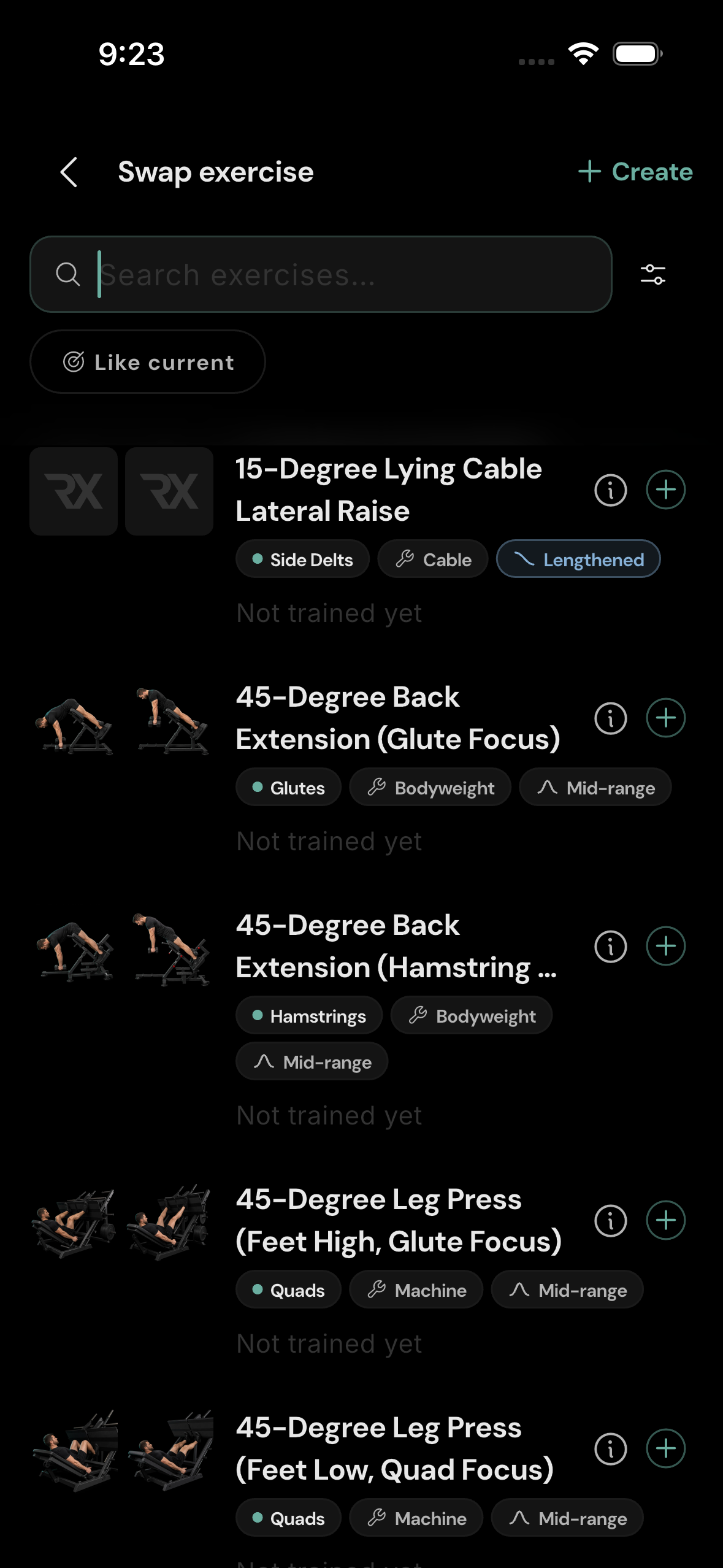
Scroll below the existing exercises and tap + Add exercise. Search or browse the exercise list, tap + beside each movement you want, then tap Done. The selected movements appear in the workout. The picker also offers exercise details through the information icon and a Create action for a custom exercise.
Swap an exercise
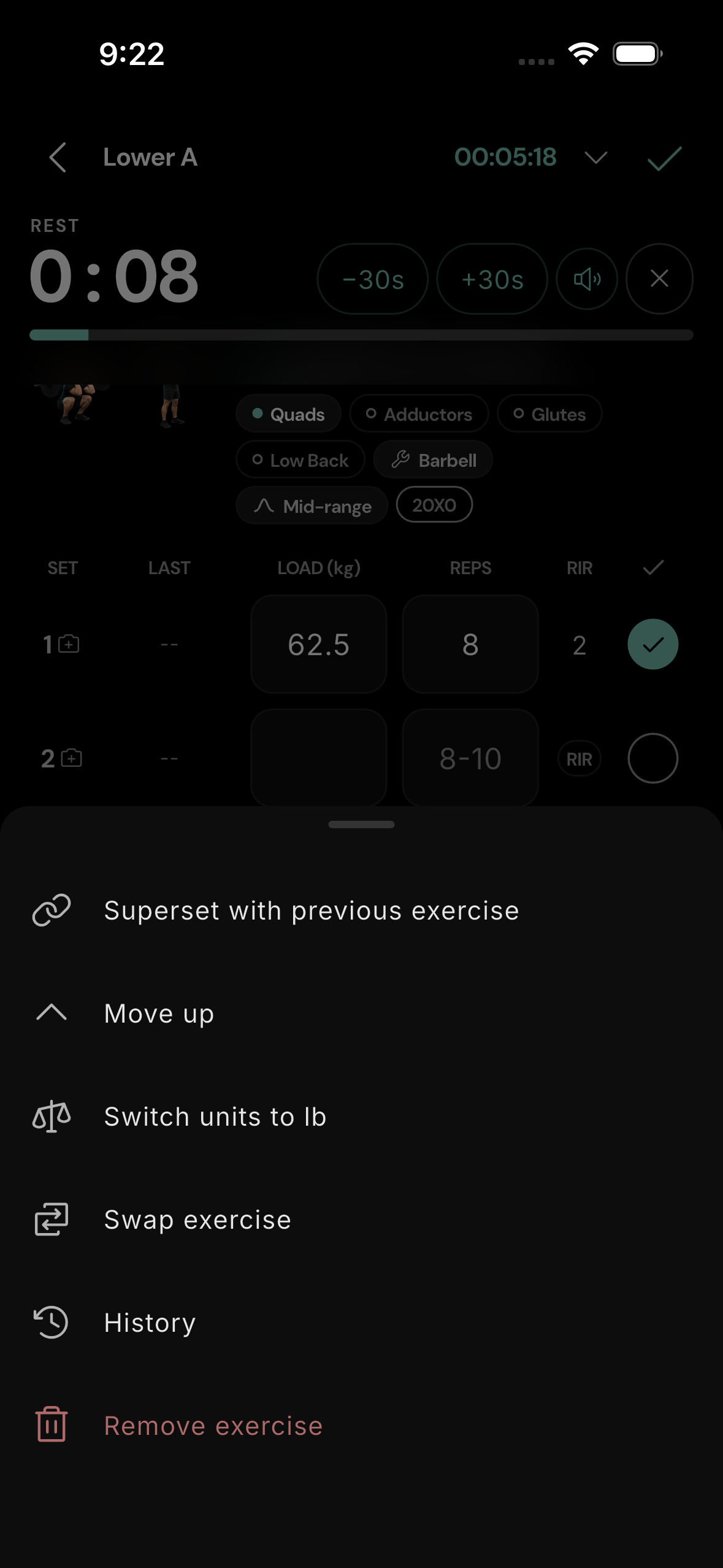
Open the exercise's three-dot menu and choose Swap exercise. Search for a replacement, use filters or Like current to narrow the list, and tap its + button. The picker returns to your workout with the replacement in that position. Check the new set rows and load: a different exercise or equipment may need different numbers. A swap in a programmed workout can trigger the program update choice at finish.
Reorder, remove, and link exercises
The same menu offers Move up or Move down where a neighbouring exercise exists, and Remove exercise. To make a superset, choose Superset with previous exercise or Superset with next exercise. Linked neighbours are shown together for alternating sets. Remove from superset separates a linked exercise again. These options depend on the exercise's position and whether it is already linked.
If you only need another set of the same exercise, use + Add set under its card instead of adding a duplicate exercise. Set options and intensifiers are opened by tapping a set number.
Check exercise history
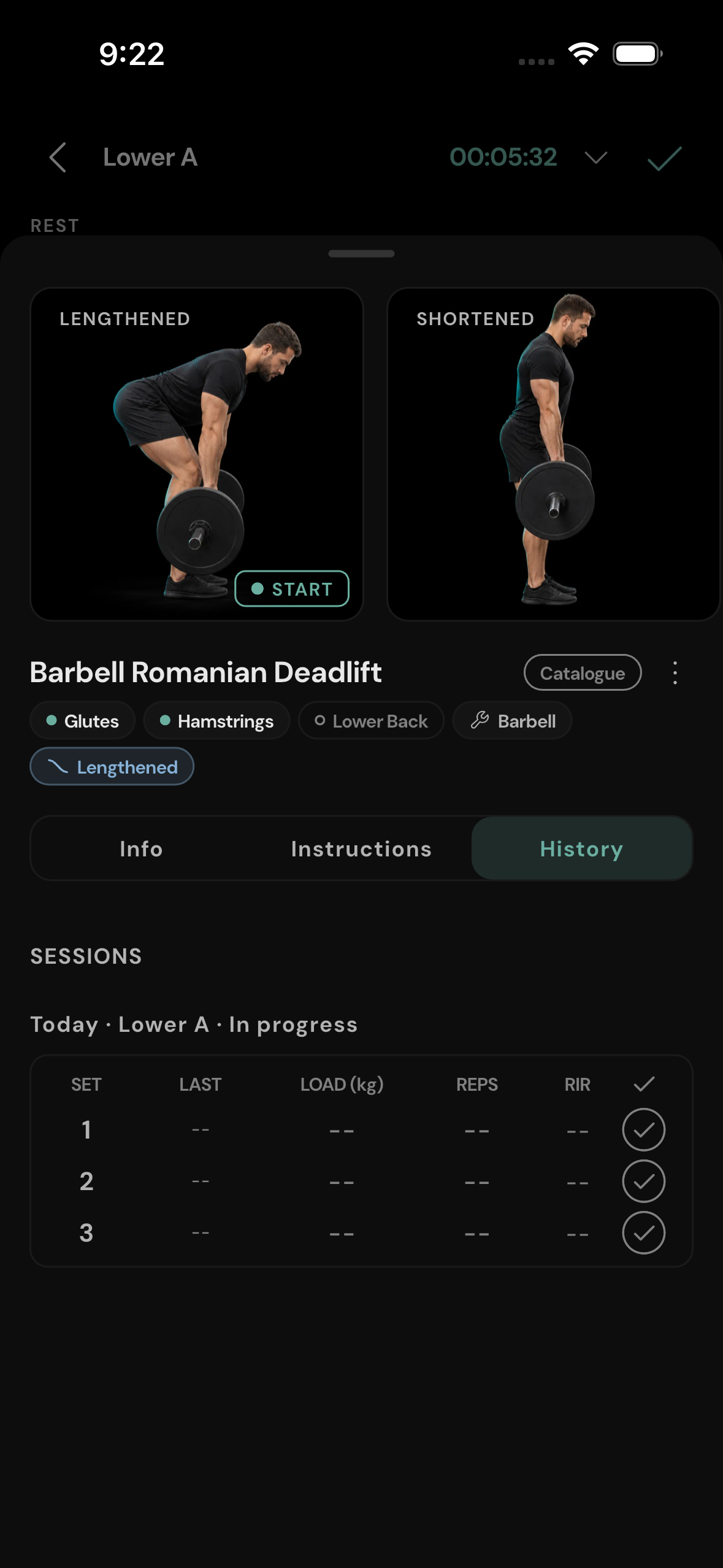
Tap an exercise name or choose History from its three-dot menu. The exercise sheet contains Info, Instructions, and History tabs. History shows sessions and their set results, including the current in-progress session. For an exercise you have never logged, the current session may be the only entry. The workout's LAST column is a quicker reference for the previous set; tapping a previous value can fill the current row. Enter the load if you need to adjust it.
Switch weight units
The menu offers Switch units to kg or Switch units to lb. The current exercise's load values and previous-set display are converted for the selected unit. You can also choose kg or lb on the load pad for an individual entry. Check any plate selection after changing units, because kg and lb plates have different denominations. Use the load calculator.