Search or scan food
From Log food, use Search for a food name or Barcode for a package. Both lead to the portion sheet, where you choose how much you ate. You can then log it now or add it to a meal tray.
Search for a food
Search opens first. Before you type, it shows foods you eat frequently around this time and foods you logged recently. Tap one to reuse it. Otherwise, type a name or brand in Search foods and choose the result that matches the food you had. Look at the name, brand, source badge, and nutrition per 100 g before choosing. More like this expands similar entries when a result is grouped with variants.
The All chip beside the search field narrows the list to Favourites, My foods, My meals, or Recipes. Those last categories let you reuse items already saved in your account; creating custom foods and recipes has its own future guides.
Understand the food sources
Search combines RESISTX-curated foods with reference and branded entries from sources such as USDA, Open Food Facts, the Australian Food Composition Database (AFCD), the Canadian Nutrient File (CNF), CoFID for UK foods, and supplement data. The small badge under a result shows its source. Similar names can carry different nutrition or serving data, so use the badge and the per-100 g numbers to choose the right match.
Your recent and favourite items help bring familiar choices back quickly. A source badge tells you where a food definition came from; it is not a promise that every serving size or brand formulation is identical to your package. Check the label when accuracy matters.
Offline and online search
With the food catalogue kept on your device, text search works offline and normally responds without a network round trip. RESISTX can use an online catalogue search while the download is unavailable or still being prepared. In online-only mode, text search needs a connection. Recent and account-owned items may still be visible from local data, but they are not a substitute for the full catalogue.
The Keep on this device preference controls the choice between a downloaded offline catalogue and online-only search. See Food catalogue settings to change it.
Choose the portion and amount
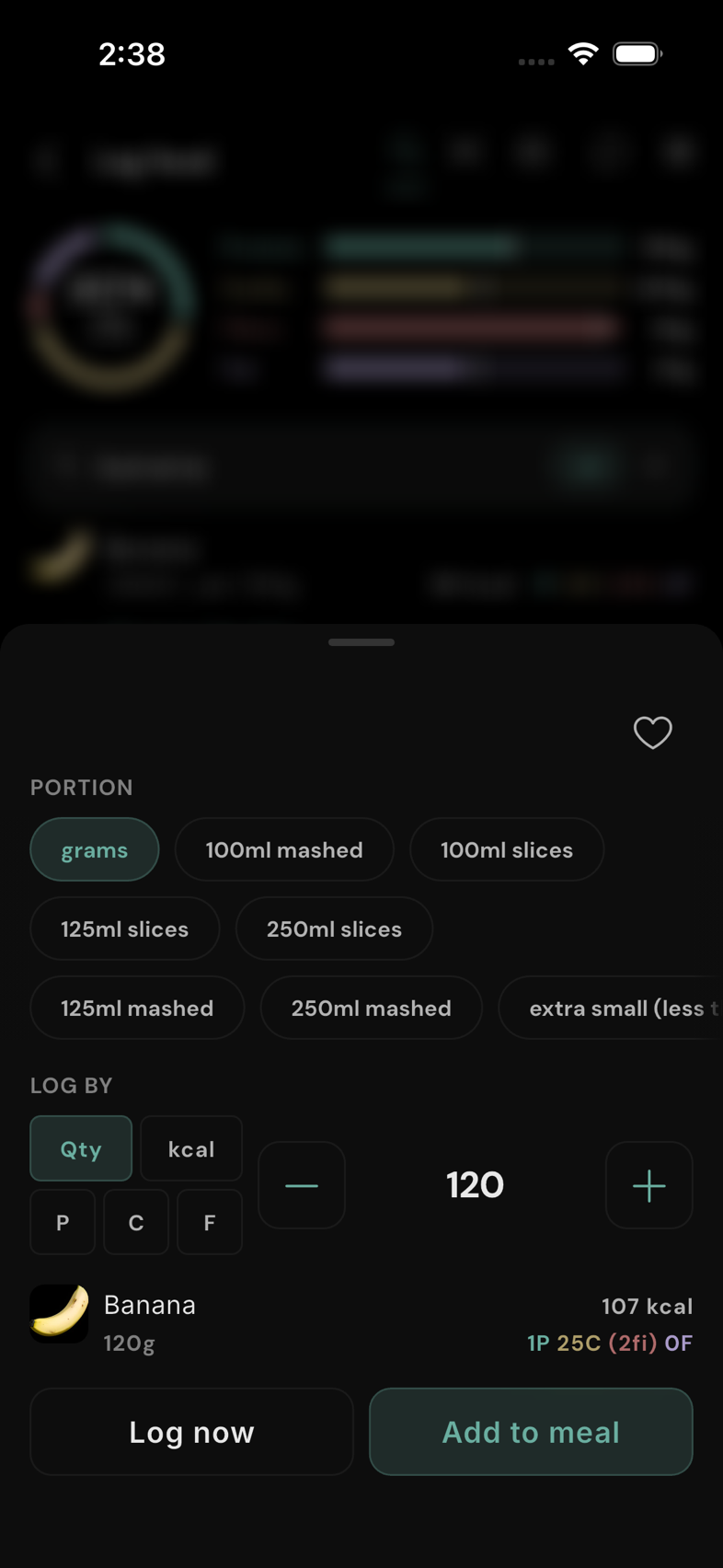
Tap a search result to open its portion sheet. Choose grams or a named serving chip, then set the amount with the minus/plus controls or number pad. LOG BY lets you enter a Qty, or target kcal, P (protein), C (carbs), or F (fat); for a nutrient target, the app calculates the corresponding amount of that food. The preview below updates the calories and macros before you save.
Tap the heart to favourite the food for quicker access later. Log now saves this food immediately. Add to meal stages it with other items; finish with the tray's Log N items button. If you logged the food before, the picker can start with your last portion and quantity—check that they still match what you ate today.
Scan a barcode
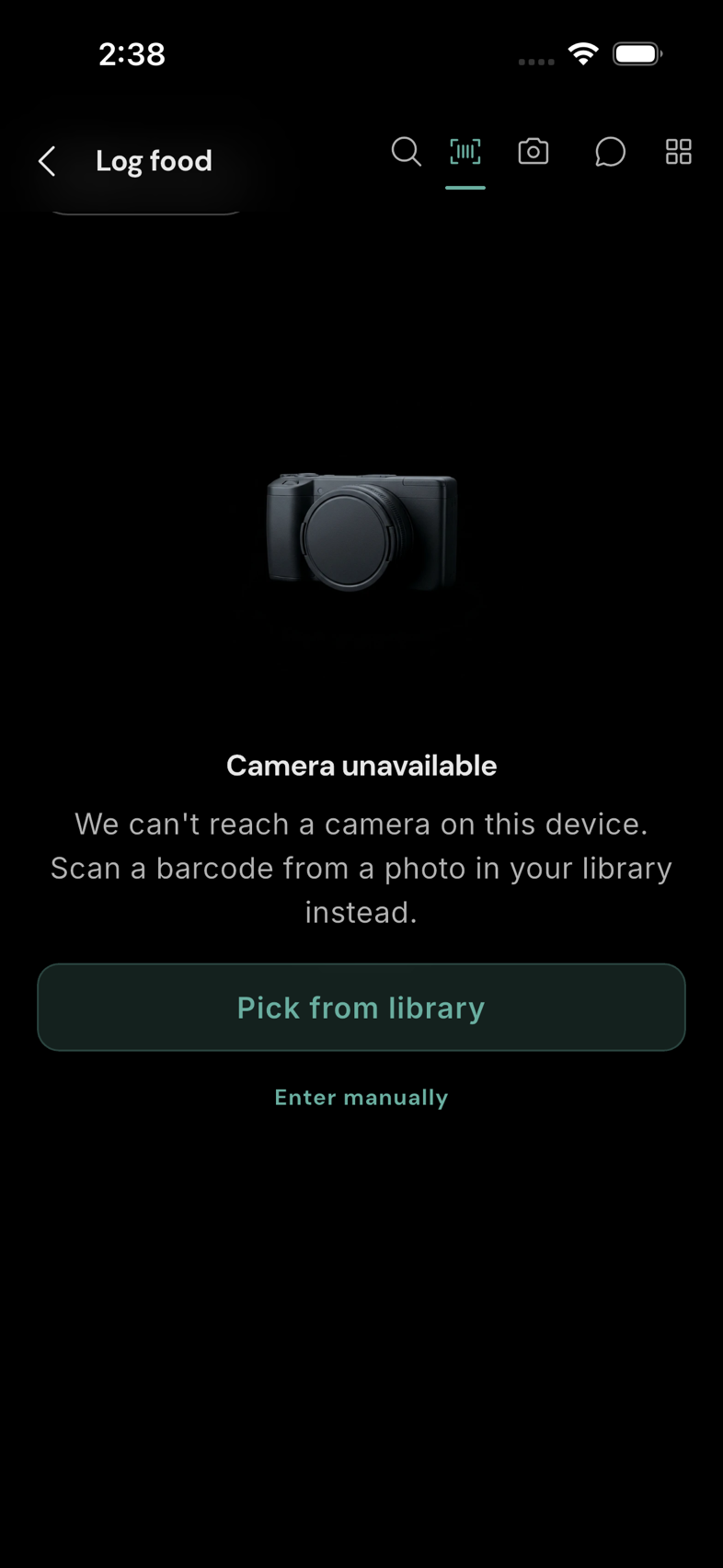
Choose the Barcode icon and point the phone at a package's barcode. A match opens the same portion sheet, so check the product and amount before logging. If the camera is unavailable, Pick from library can scan a clear photo of the barcode. Enter manually opens Quick macros for a nutrition-number entry; it does not ask you to type the barcode digits.
Barcode matching checks the food catalogue available on the device. If a package does not match, search by its name or use Quick macros from its nutrition label.