Log food and use the Eat diary
Use Eat to record what you ate and review your day. You can log one food immediately or collect several in a tray before saving them together. For the individual methods, see Search and barcode, Photo, Chat, and Quick macros, and iPhone, Siri, and Watch shortcuts.
Start from Today or Eat
On Today, tap the Log food button when it appears in the day's card, or tap + and choose Log food. On Eat, tap the floating +. Both open the same Log food screen. Today opens the current day. Eat carries the date you are viewing, so select a different day in Eat before tapping + if you are logging something from an earlier date.
Use the date in the Eat header to open the calendar. You can also swipe the diary area horizontally to move between days. Swipe within the top carousel to change its panel without changing the diary date.
Choose a logging method
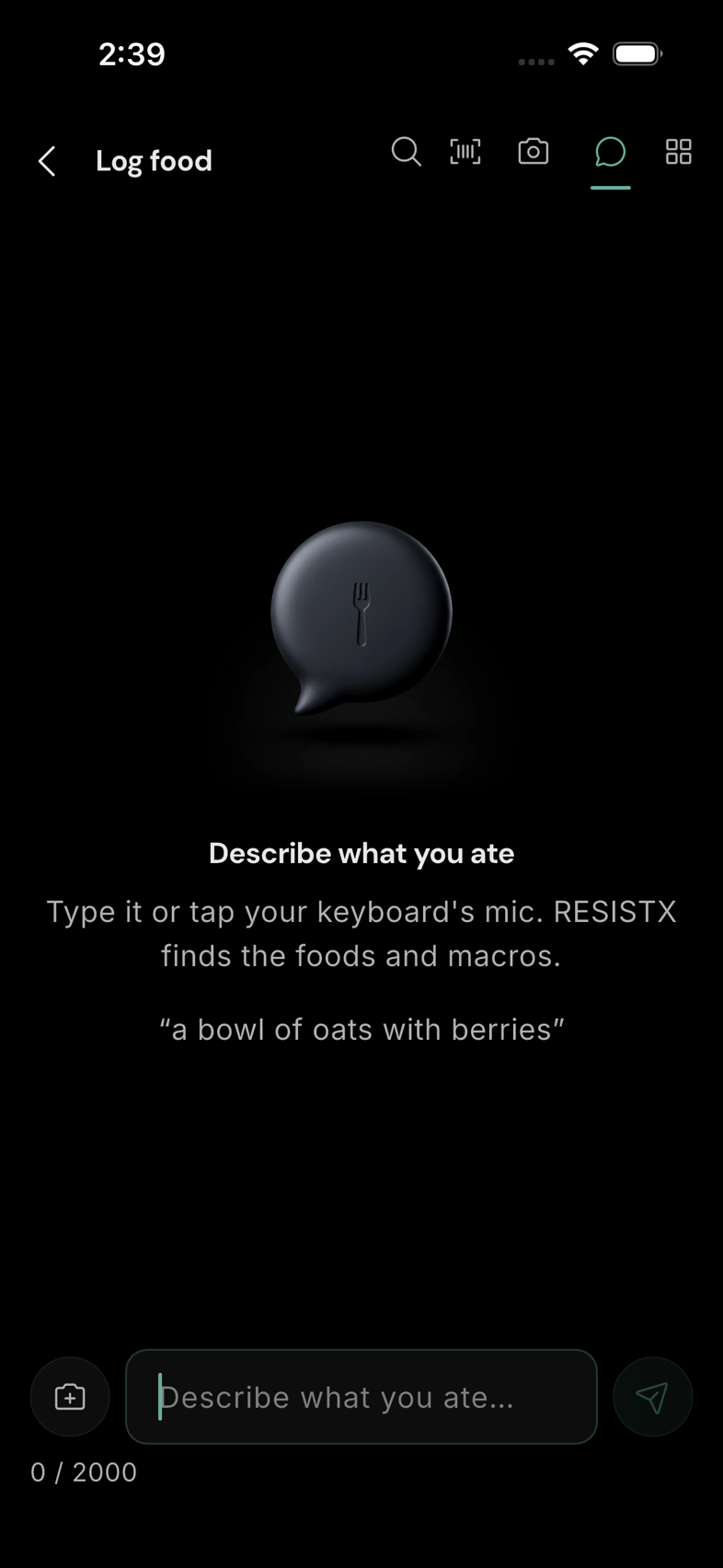
The icons at the top of Log food switch between five methods. You can move between them while assembling a meal; items already in the tray stay there.
| Method | Best for | What you do |
|---|---|---|
| Search | A known food or one you have logged before | Find a result, then choose its portion and quantity. |
| Barcode | A packaged food | Scan the code or use a photo of its barcode. |
| Photo | Food you can photograph | Review and correct the foods detected in the image. |
| Chat | A meal you can describe or show | Send words, a photo, or both; correct suggestions in the conversation. |
| Quick macros | Nutrition numbers you already know | Enter calories and macros without choosing a database food. |
Log one item or build a meal
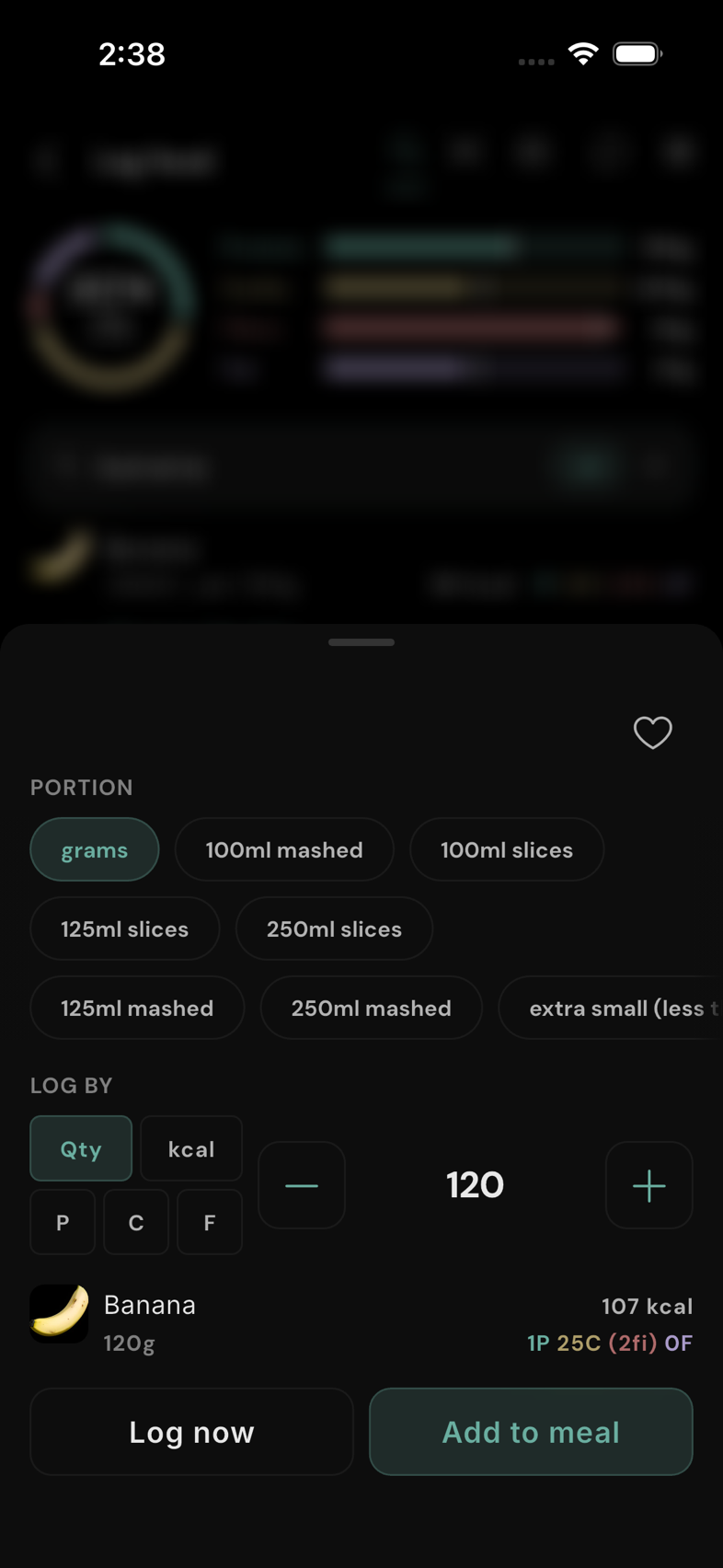
After choosing a database food, the portion sheet offers Log now and Add to meal. Log now saves that item immediately. Add to meal puts it in the tray at the bottom of the Log food screen. A tray is a draft: its projected calories and macros appear in the top bars, but nothing in it reaches your diary until you tap Log N items.
Tap the tray strip to expand it. Tap an item to change its portion or quantity, or use its remove control to take it out. You can add items with different methods before logging them together. Leaving with a non-empty tray asks whether to keep working or discard the draft.
Review and correct the diary
The Eat timeline groups foods by time. Tap a collapsed group to see its foods; tap an individual food for actions including Edit, Favourite, Add food at this time, Change time, and Copy to another day. Add food at this time joins the new item to the existing time slot. You can also remove an entry. A group offers actions for adding more food, changing its time, or copying the group to another day.
Check the day and the portion after logging. A diary entry can be edited later; a Quick macros entry opens its macro editor, while a database food opens its food and portion editor. Your day's totals update as entries change.
Read the Eat carousel
Swipe the panel beneath the date left or right; the dots show which panel is selected. The default daily macros panel shows calories in the ring and protein, carbs, fibre, and fat in bars. The marker on a bar is a target when you have one. The short caption relates your current intake to your usual pace at this time of day; tap a macro row for its breakdown.
The weekly distribution panel shows when you usually log energy across the last seven days. Use kcal, Protein, or Carbs on the right to change the plotted measure. Where workouts are available, a shaded training window gives context for meal timing; tap it for its explanation.
The Adaptive TDEE panel shows the app's current daily energy-expenditure estimate and range when enough data is available. It may instead say it is calibrating; access to this panel can depend on your plan. An account without nutrition targets may see a Set your nutrition targets prompt as an extra first panel. The carousel is for interpreting the diary; logging still begins with +.