Log by photo, Chat, or Quick macros
These methods sit beside Search and Barcode at the top of Log food. Photo and Chat help identify a meal; Quick macros lets you enter known nutrition numbers yourself. Review the result before saving, particularly when a photo or description leaves the amount uncertain.
Log from a photo
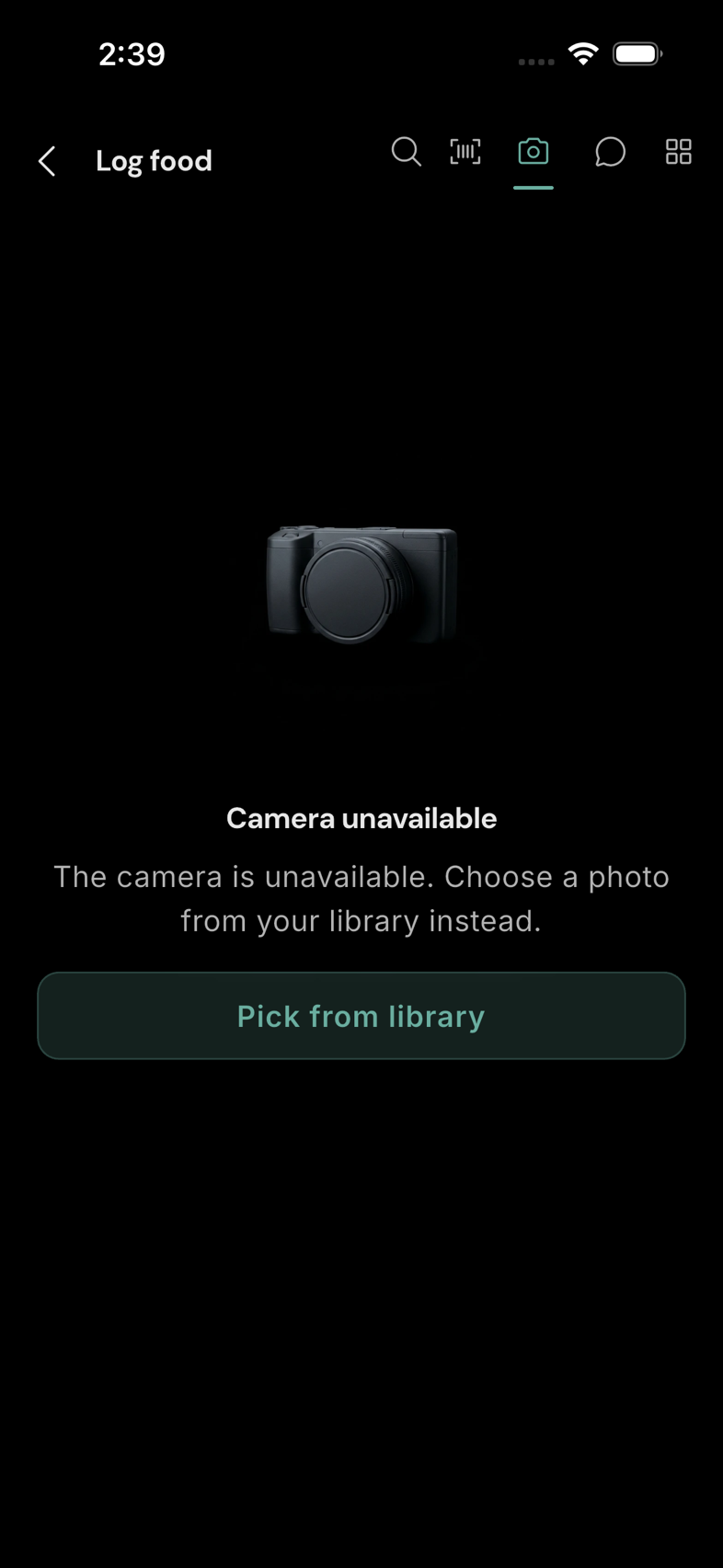
Tap the camera icon, take a clear photo of your food, or choose Pick from library. RESISTX analyses the image and shows the foods it detects. Select the items you ate, tap a row to correct its amount or macros, then use Log N items in the tray. Retake lets you try another image. A picture does not save food automatically.
If the image looks like a packaged-food nutrition label, the app may open a Quick macro sheet prefilled from the label instead of the normal food-photo results. Check every number and the food name before logging. If no food can be identified, retake the picture or switch to Search or Quick macros. Photo analysis needs an available connection and feature access.
Describe food or send a photo in Chat
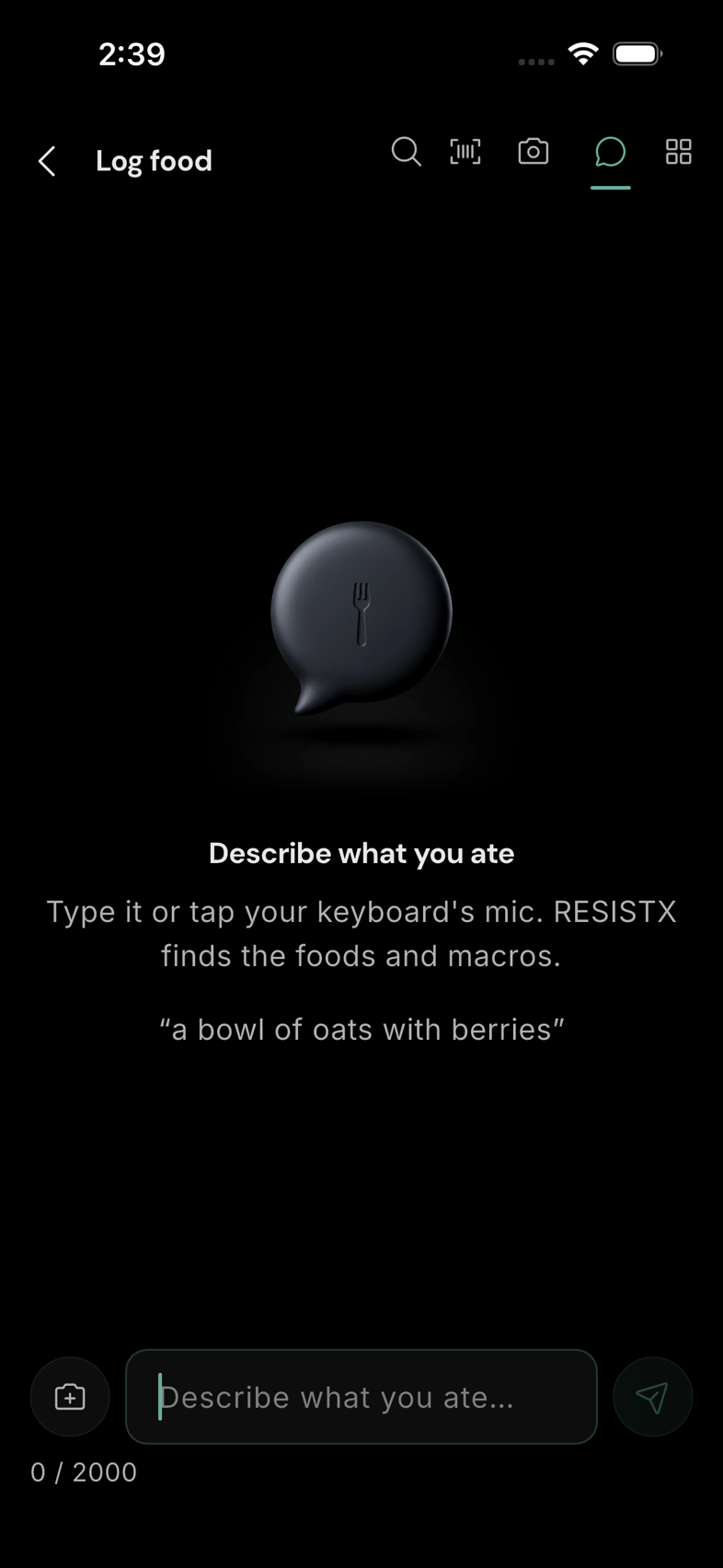
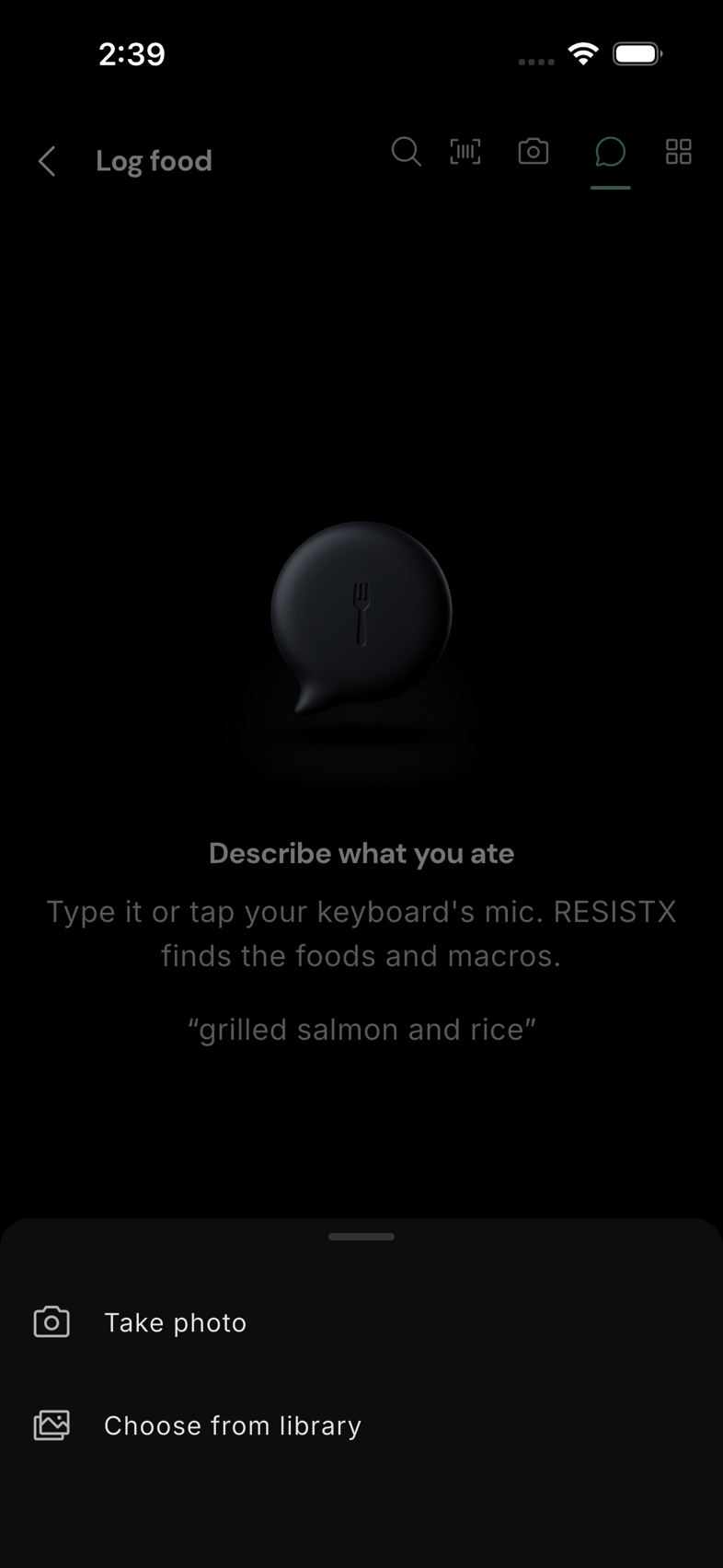
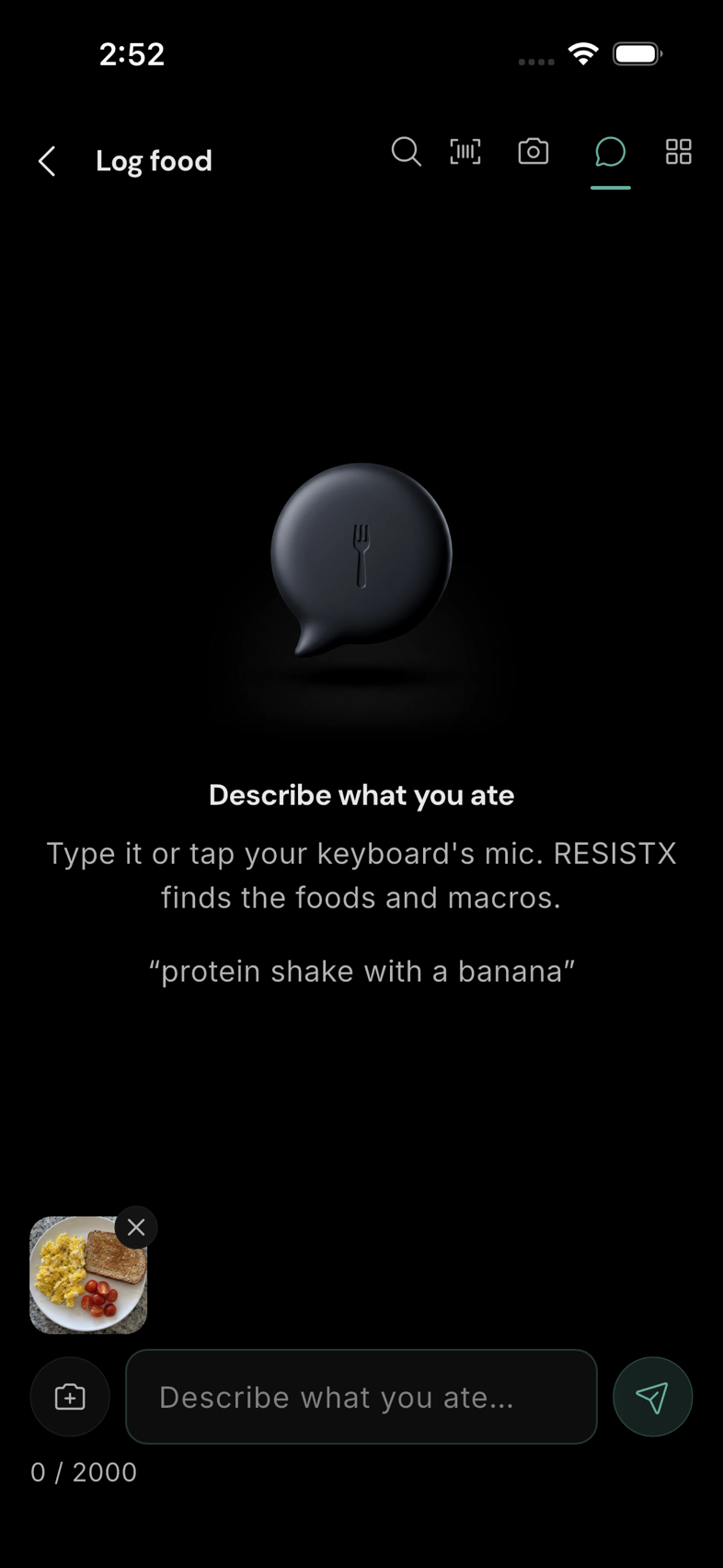
Tap the speech-bubble icon. Type what you ate, or use your keyboard's microphone to dictate it, then send. A useful description includes the foods and approximate amounts—for example, “2 eggs and a slice of toast.” Tap Add a photo beside the message field to Take photo or Choose from library. The image appears above your draft; you can remove or replace it without losing your words. You can send the photo with a description or send the photo on its own. This differs from the separate Photo method: Chat keeps the picture and your follow-up messages in one conversation.
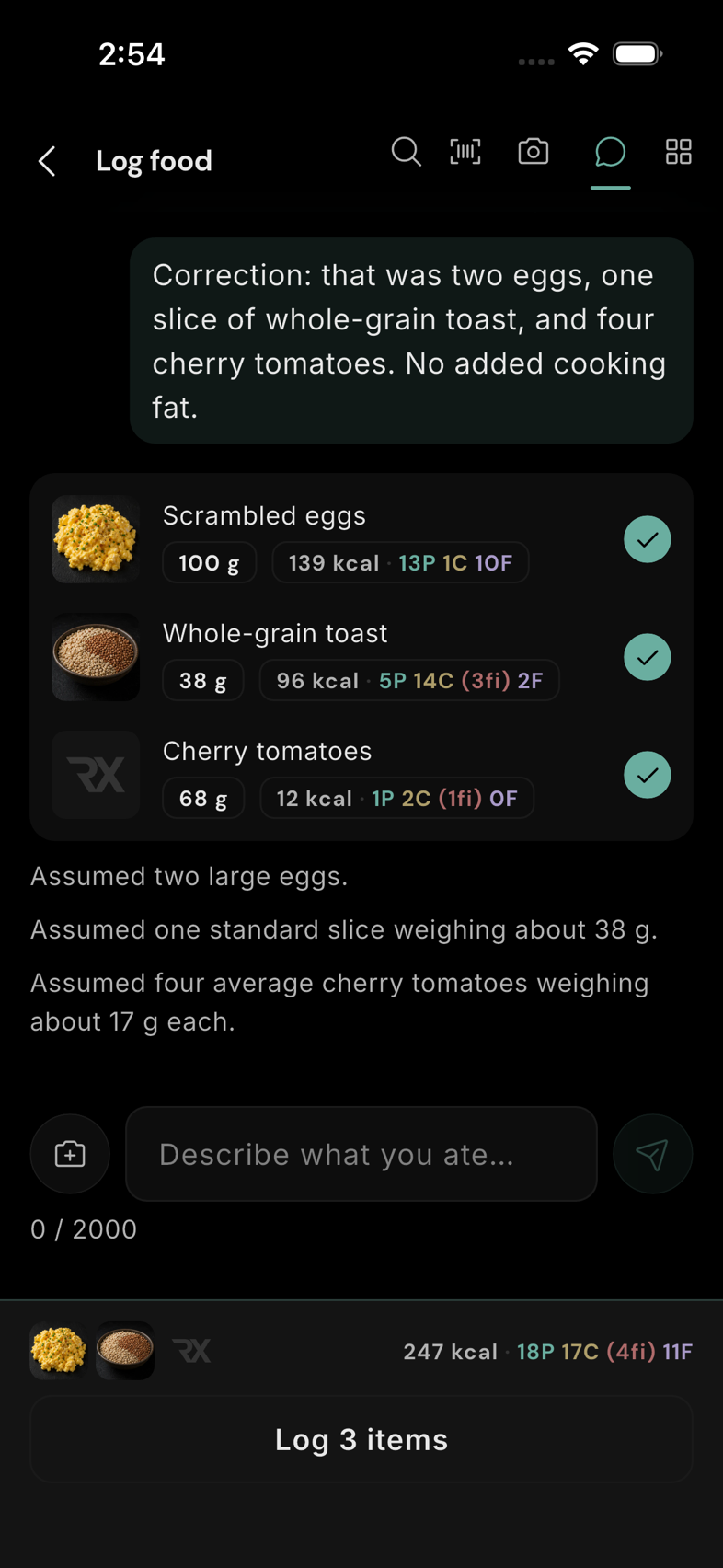
Review the suggested foods in the conversation. Tap the circle beside each item you want to include; tap a food row to edit its quantity or macros. The shared tray preview updates as you select items and remains available as you move between methods. Tap the tray to expand it, then Log N items to save. Chat needs a connection and may be limited by your plan or feature availability. For hands-free capture outside the app, see Hey Siri and Watch.
Correct a Chat suggestion
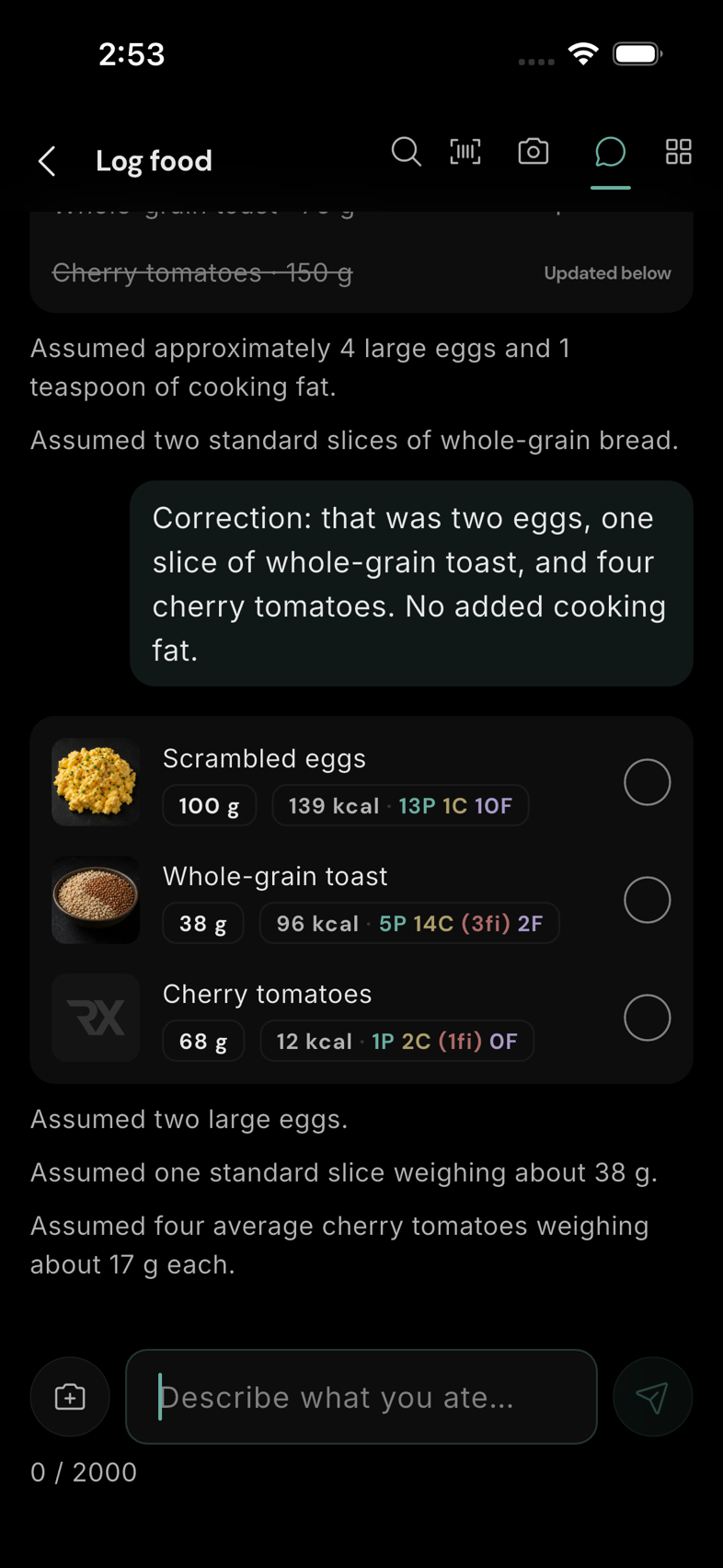
If Chat identifies a food or amount incorrectly, reply in the same conversation with the correction—for example, “That was one slice of toast, not two,” or “The drink was skim milk.” The new response uses the earlier message and photo as context. Review the updated suggestion before logging; the earlier result is marked as corrected so you can tell which one to use. You can also tap an individual suggested food to edit its amount or macros directly, or deselect an item that was not part of your meal. Only the selected items you finally log become diary entries.
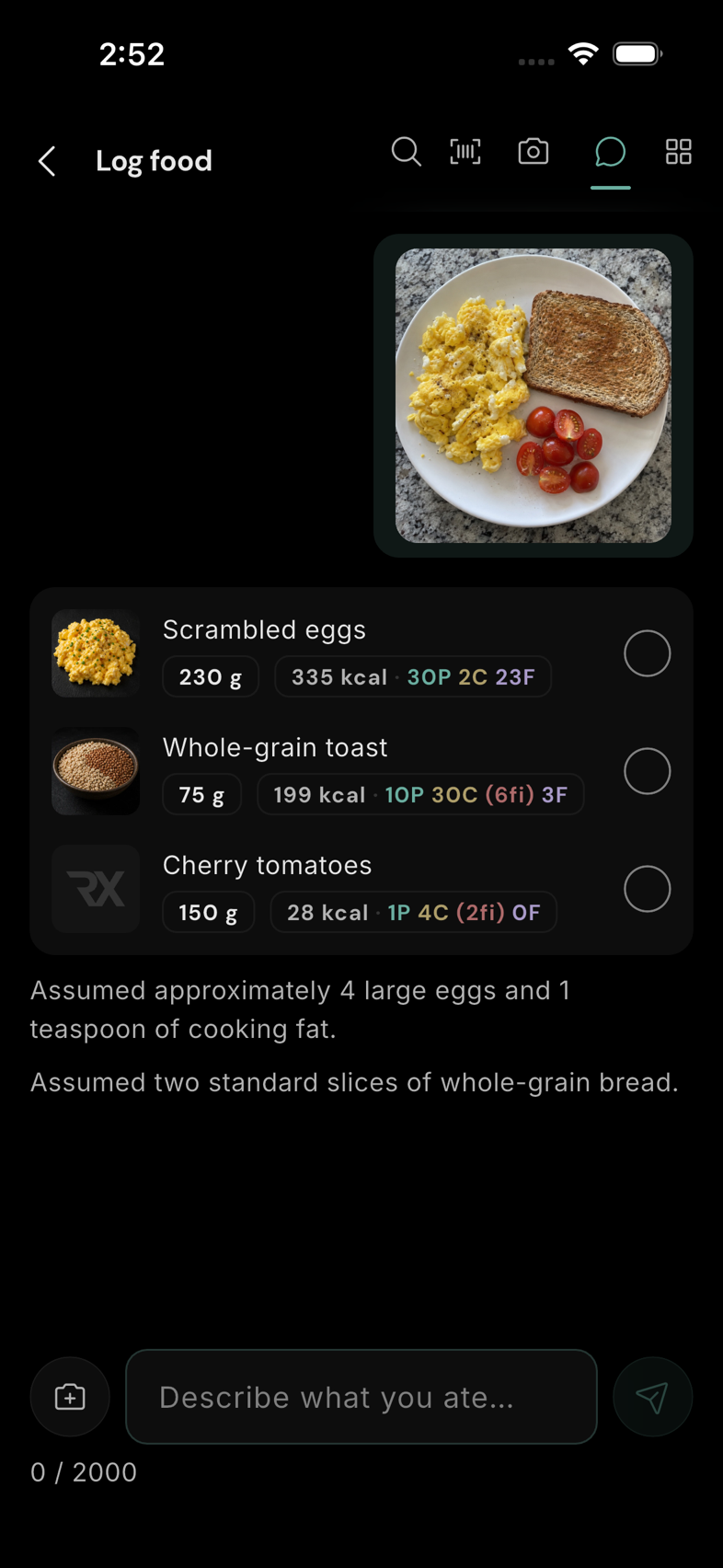
In the example below, Chat first estimated roughly four eggs and two toast slices from a breakfast photo. The follow-up specified two eggs, one slice of toast, four cherry tomatoes, and no added fat. Chat struck through the superseded items and offered revised amounts. Select the revised rows, check the tray total, and tap Log 3 items only when the meal is right.
Enter Quick macros
Tap the four-square icon to open Quick macros. The label is optional; enter the calories and the protein, carbs, fibre, or fat you know. If you leave calories empty, the app calculates them from the macro values under your account's carbohydrate convention. Check the preview before saving. Quick macros makes a one-off diary entry; it does not create a reusable database food.
Log now saves just this entry when at least one macro has been entered. Add to meal stages it in the shared tray; when a tray already contains other foods, the single-entry button reads Log just this. To log a label that the barcode scanner cannot match, Quick macros is the direct fallback. You can edit the saved Quick entry from the Eat diary later.
Check the result before you leave
Photo and Chat suggestions are starting points. Confirm the food names, quantities, and calories; remove anything that was not in your meal. The tray shows what will be logged and the top macro bars preview its effect on the day. Tap Log N items to add the staged items to the Eat timeline. If you leave instead, the app asks whether to discard the tray.